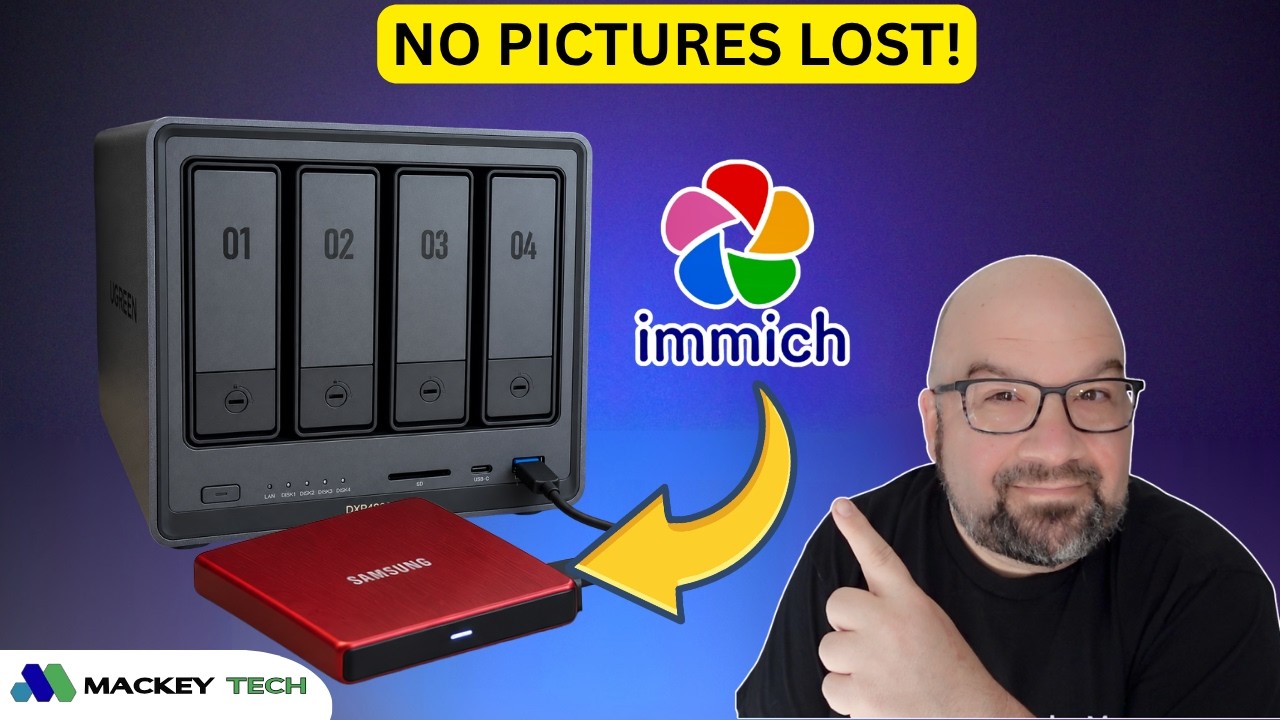
Last month I walked through setting up Immich on a UGREEN NAS as an alternative to Google Photos. Since then, I’ve gotten a lot of good questions about using an external USB drive instead of the NAS’s internal storage as the primary location for Immich uploads. So this guide covers exactly that: setting up external storage, and migrating your existing Immich library over to it.
One thing worth clearing up first: this isn’t the same as adding a second upload location for your photos. That’s what Immich’s “External Libraries“ feature does, and it’s a different animal entirely, it indexes files in place without taking ownership of them. What you’re doing here is changing the storage location Immich itself owns and uploads every future photo to. Your existing albums and photos don’t disappear; they move with the library.
Back Up Before You Touch Anything
Your Immich folder holds three things: the postgres folder, which is the database tracking your albums and photo dates; the library folder, where all your actual media lives; and the model-cache folder, which stores the machine-learning models Immich uses for facial recognition. You can back all of this up by copying the whole Immich folder to a shared backup folder on the NAS or another external drive, or by setting up a backup task using UGOS’s “back up between pools” option. Either way, do this first — it’s the whole reason the rest of this process is low-risk.
Finding Your External Drive’s Mount Point
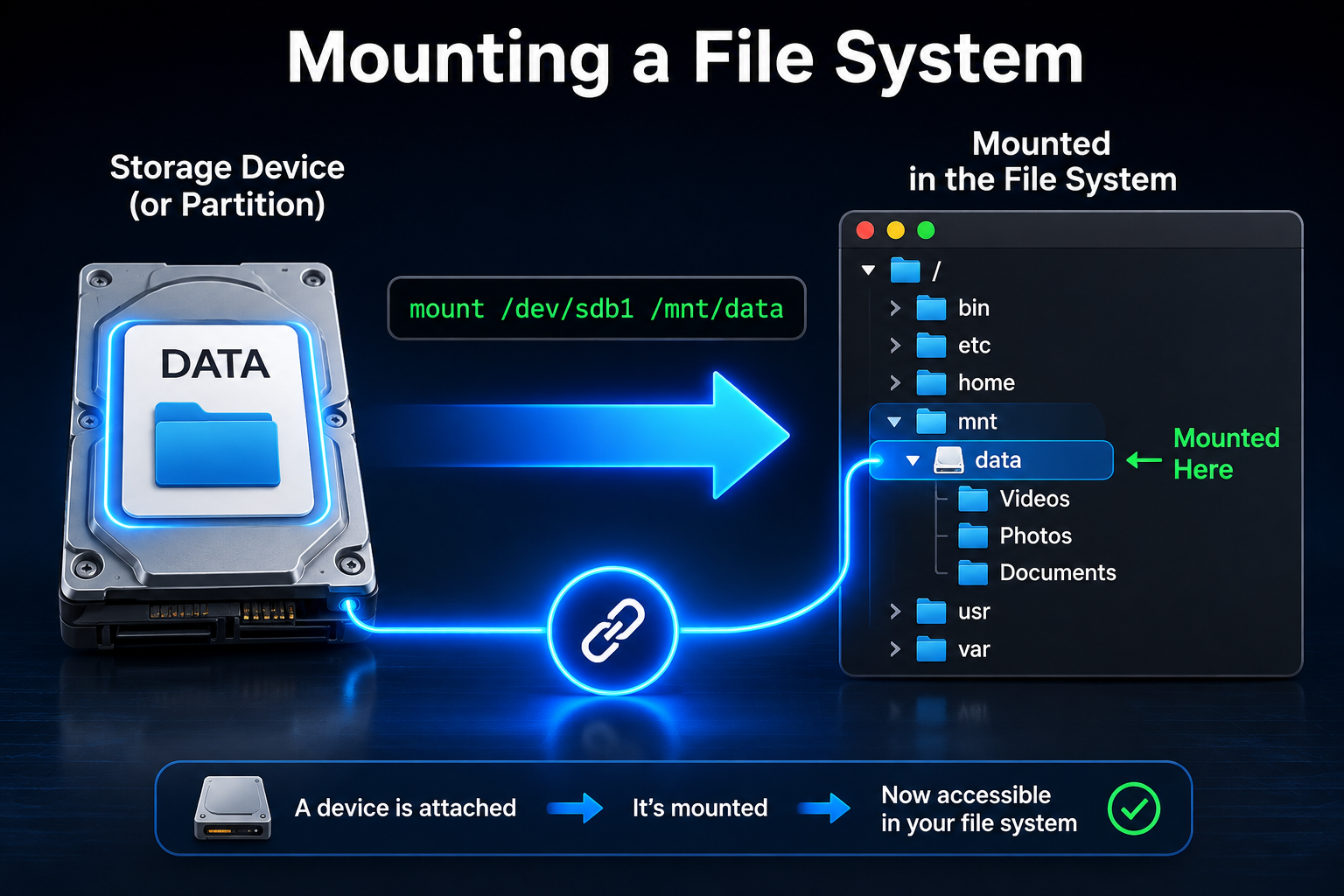
Plug the external drive into a USB port on your NAS. Before you can point Immich at it, you need to know its mount point — the path UGOS actually uses to address the drive.
Start in File Manager: go to External devices, double-click the drive, and note its name. Mine happens to be “Bench.” From there, you have two ways to find the actual mount point. The way I usually do it is over SSH: enable SSH under Control Panel > Terminal (make sure it’s running on port 22), SSH into the NAS from another computer, and run ‘lsblk -f‘ . That lists every block storage device on the NAS — drives, partitions, all of it — and you’re looking for an entry starting with /mnt/@usb/ that matches the drive name you noted earlier.
You don’t actually need SSH for this, though. File Manager will tell you the same thing: click the external drive under External devices and select Details in the right-hand panel, and it lists the mount point directly. Either way works — SSH just happens to be the method I default to.
Whichever way you find it, write it down, because you’ll need it in a few minutes. And keep in mind the mount point I’m using in this guide, /mnt/@usb/sde2/, is specific to my NAS and my drive. Yours will almost certainly look different — it depends on which USB port you use, what else is plugged in, and how many partitions your drive has. Always use the path you actually found, not mine.
Stopping Immich and Moving the Library
Back in the UGOS Docker app, select Stop next to the Immich project. This stops the containers so it’s safe to make changes.
Here’s the part that trips people up if they’re not paying attention: you’re only moving the library folder. Not postgres, not model-cache, not the yaml file — just library. Right-click it, select Copy/Move to, choose Move, and send it to the root of your external drive. Once it finishes, double-check that the folder and all its sub directories actually made it over before you move on. This is genuinely the step where things go wrong if you rush it — a partial copy is a much bigger headache than the ten extra seconds it takes to verify.
Editing the Compose File
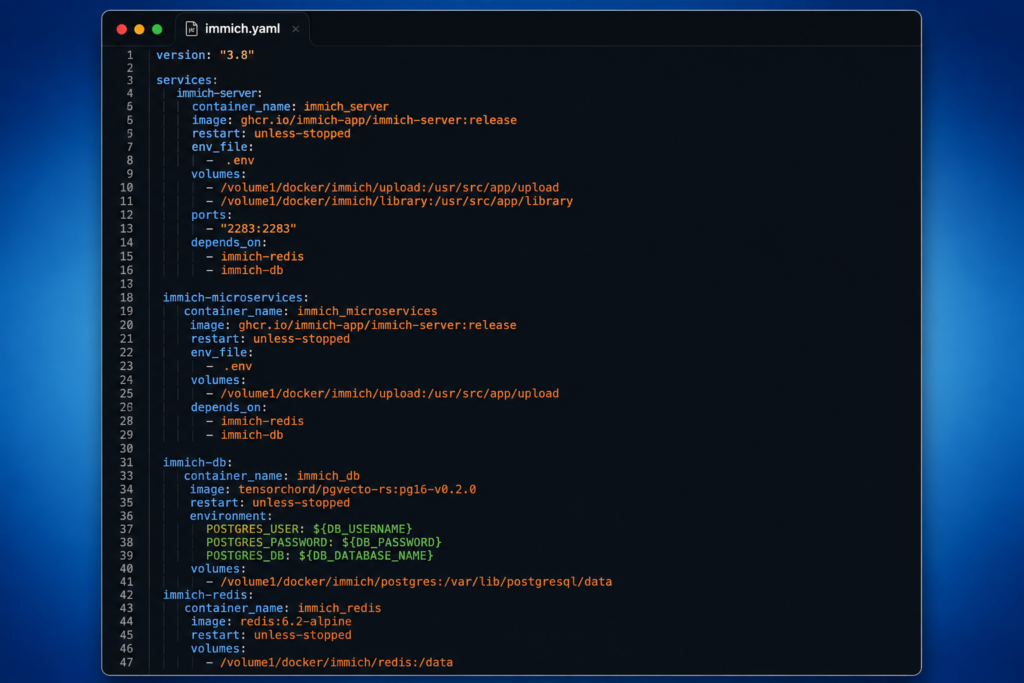
Back in the Immich project, click the three dots in the upper right, select Settings, then Compose configuration. The first path under volumes is where Immich is currently uploading everything — internally, on the NAS. Comment that out with a #, then add a new line with your external path:
'- /mnt/@usb/sde2/library:/data'
The part after the colon, /data, is the container’s internal path, and it never changes — only what’s mounted behind it does. That’s really the whole trick to this entire process: Immich only ever knows about /data. What’s physically sitting behind that path is entirely up to you.
One thing worth flagging explicitly, because it’s an easy mistake: yaml files and Linux itself are case-sensitive. It doesn’t matter whether you name your folder library, Library, or LIBRARY — but whatever case you actually used when you created it has to match exactly in the compose file. I used Library with a capital L on my own drive, so my line reads /mnt/@usb/sde2/Library:/data, not lowercase. Get the case wrong and Immich simply won’t find your files.
Redeploying and Checking Everything
Scroll down and click Redeploy to feed the updated yaml in. Once it’s back up, open a browser, go to your NAS’s IP address on port 2283, log in, and you should see every album and photo exactly as you left them. You can also confirm the switch actually took by checking the storage indicator in the lower-left corner — it should now reflect your external drive’s capacity instead of your internal storage.
Then do one more sanity check: take a photo on your phone, let the Immich app sync it, and refresh the web app to confirm it shows up. Nothing changes on the mobile or web app side — same login, same IP, same everything. That’s honestly the part I find most reassuring about this whole process: you can move where the data physically lives without touching how you actually use the app day to day.
Don’t Skip the Backup Schedule
Once you’ve confirmed everything’s working, set up a regular backup schedule for the new external library location, and ideally keep more than one copy. A compose file you can rewrite from scratch in five minutes. Photos you can’t. I
One Last Thing
This turned out to be a pretty painless setup once you know where to find the mount point. If you’re one of the folks using UGOS’s built-in Photos app instead of Immich, I’d genuinely like to know how that’s working for you, and whether a migration guide from UGOS Photos to Immich would be useful. And if you hit something on your own setup that looked different from what’s here, drop it in the comments too, that’s usually how I find out what to cover next!
I also have a full PDF tutorail in my free Patreon, so please check that out!
💻 Hardware I Used: ✅ Some links on this post may be affiliate links, which help support me and help keep ads off here!
There are countless ways to back up your important data, from external USB drives to cloud storage and a second NAS. However, choosing the right combination can become confusing—and cloud storage can get expensive once you start protecting several terabytes of data.
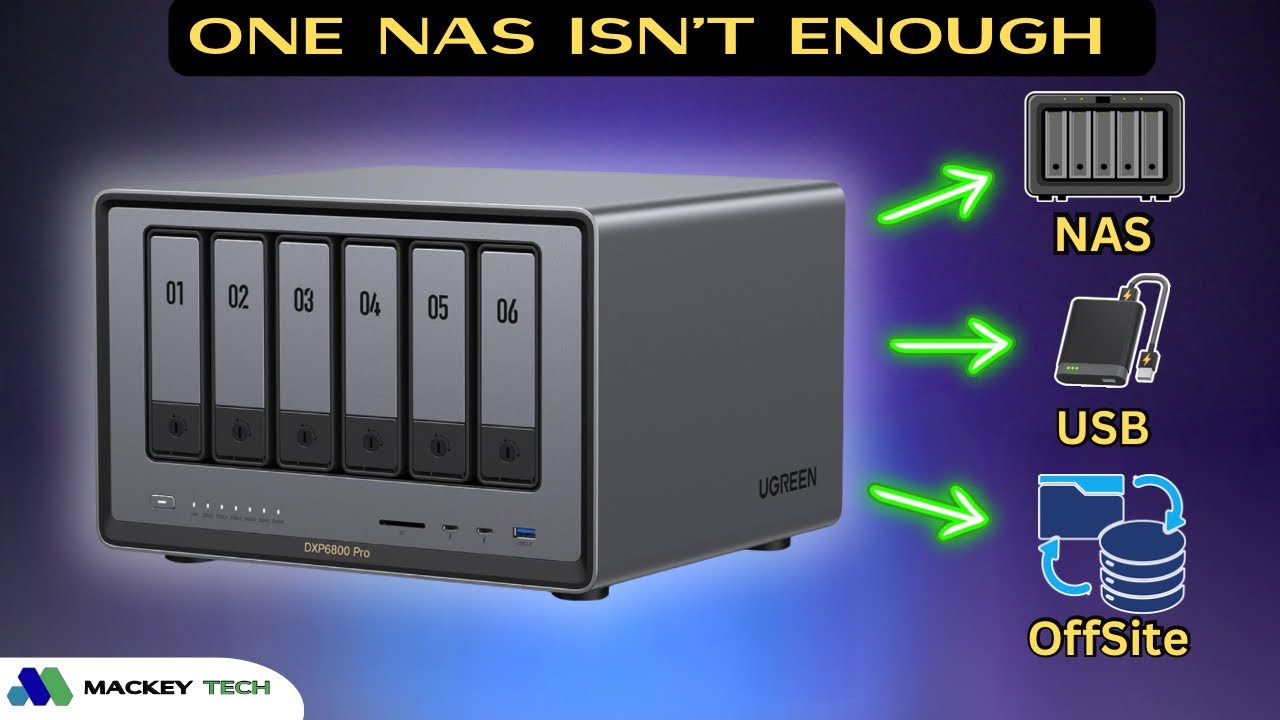
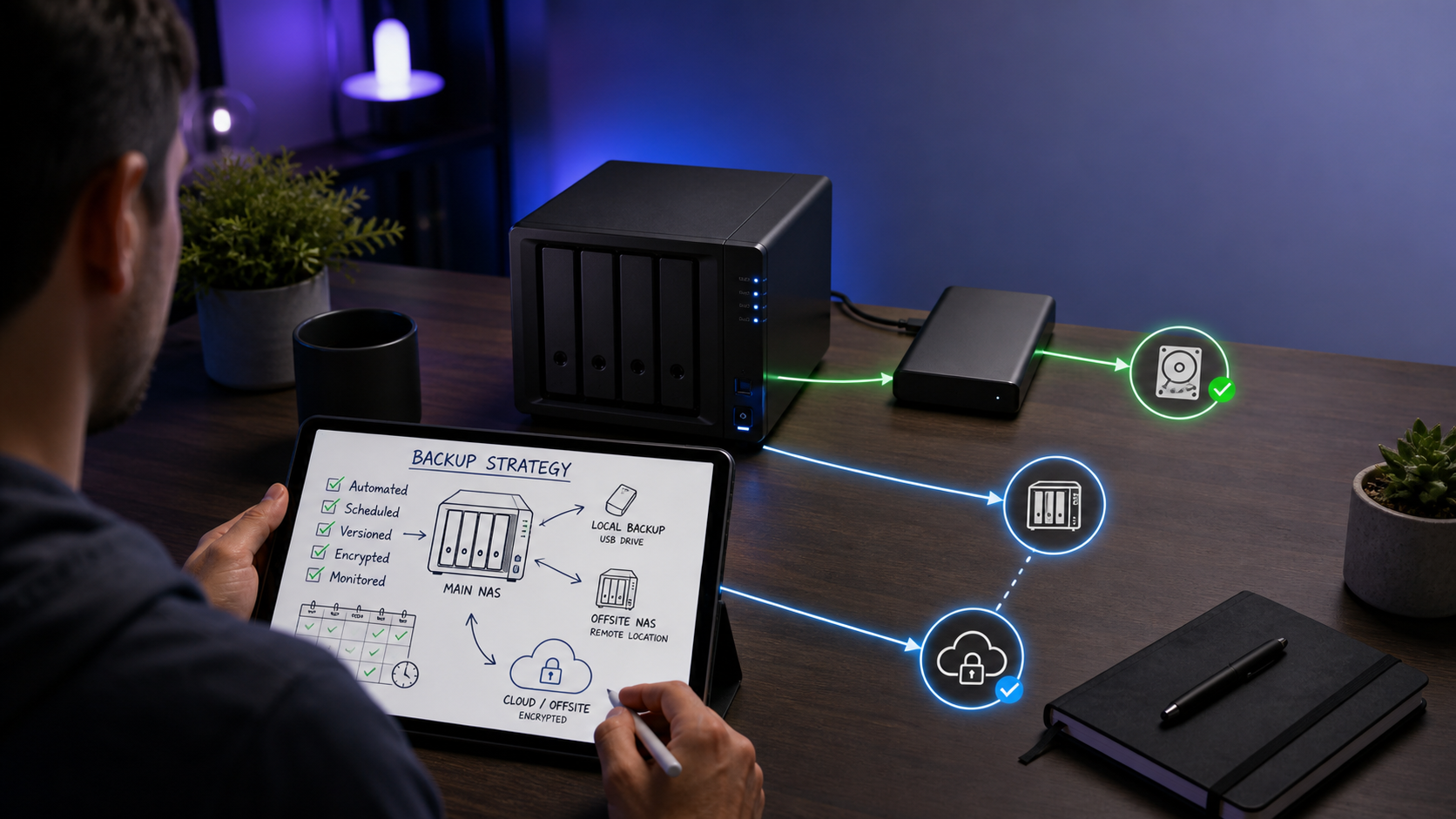
In this guide, we’ll use the easy-to-remember 3-2-1 backup strategy to protect the data stored on a UGREEN NAS. We’ll create a local backup on a USB drive, back up to another NAS using rsync, and explore two options for completing remote backups between UGREEN NAS devices.
What Is the 3-2-1 Backup Strategy?
The 3-2-1 strategy means keeping at least three copies of your important data. Two copies should be stored on different types of storage, such as your NAS and an external USB drive. The third copy should be stored off-site so it remains protected if something happens to your home, such as theft, fire, flooding, or another disaster.
Your original files count as the first copy, so you need two additional copies to complete the strategy. RAID can help keep a NAS running when a drive fails, but RAID alone is not a backup. It doesn’t protect you from accidental deletion, corrupted files, ransomware, or the loss of the entire NAS.
Decide What You Need to Back Up
Not every file needs the same backup schedule. Files you access and change regularly should generally be backed up daily or weekly. This might include active projects, documents, business files, and anything else that changes frequently.
Irreplaceable files such as family photos, home movies, completed projects, and important financial or medical records deserve additional protection. These are good candidates for multiple backup copies, version history, and some form of long-term archival storage.
I like to think of archival storage as a place for data that cannot easily be replaced or recreated.
Using M-DISCs for Long-Term Archival Storage
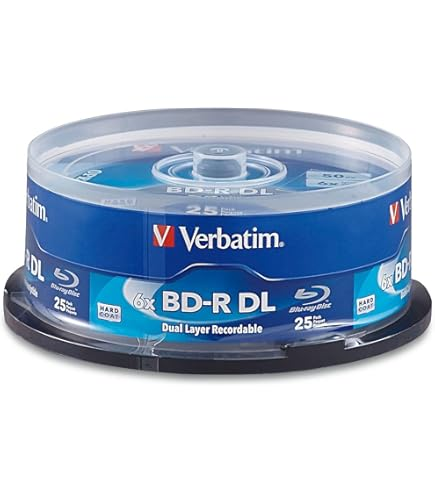
Archival-grade Blu-ray M-DISCs are one option for preserving a smaller collection of especially important files. Because the discs can be stored offline, they’re protected from ransomware, accidental deletion, and many of the problems that can affect storage devices that remain connected.
Manufacturers claim that properly stored M-DISCs may remain readable for several hundred years, with some estimates reaching as high as 1,000 years. Those figures are based on standardized accelerated-aging tests, so I would treat them as evidence of strong durability rather than a literal guarantee.
M-DISCs are not particularly cheap, and you also need a compatible Blu-ray writer. A 25GB disc typically costs around $3, while 50GB discs are often between $6 and $8 each. The 100GB BDXL versions can cost approximately $15 to $20 per disc and require a BDXL-compatible burner.
The larger discs aren’t priced strictly according to capacity because they use multiple recording layers and are more difficult to manufacture. The 25GB discs generally offer the best value, while the larger versions are convenient when you want to spread an archive across fewer discs.
Create a Local USB Backup
One of the easiest ways to create a second local copy of your data is with an external USB drive connected directly to the UGREEN NAS.
Ideally, this backup should be automated so it can run daily or weekly without requiring you to remember it. Keeping multiple versions is also helpful because it lets you recover an earlier copy if a file is accidentally changed, deleted, or corrupted.
UGOS makes this feature surprisingly difficult to find. When you open the Sync & Backup app and select Backup & Restore, there doesn’t appear to be an obvious USB backup option. However, if you create a new task and select Backup between storage pools, UGOS allows you to choose an external USB drive as the destination—even though that drive isn’t actually part of a storage pool.
Select the folder you want to protect, choose the external USB drive and destination folder, and then configure the backup schedule. You can create a one-time backup or schedule it to run automatically. If version retention is available, choose how many previous versions you want to preserve.
After the task finishes, open the UGOS Files app, select the external drive, and verify that the backup was created successfully.
This gives you a convenient second copy, but remember that a USB drive permanently connected to the NAS is still vulnerable to theft, electrical damage, ransomware, and accidental deletion. Disconnecting or rotating USB drives can provide additional protection.
Back Up One UGREEN NAS to Another
For the next part of the strategy, I used a UGREEN DXP2800 as a backup destination for my DXP6800 Pro. I first configured the backup locally and then tested it remotely with the two NAS devices on separate internet connections.
UGOS supports rsync, a widely used file-transfer and synchronization tool. If you don’t have another UGREEN NAS, the destination could instead be a Linux server, TrueNAS system, Synology NAS, OpenMediaVault server, or another device capable of receiving rsync transfers.
The setup varies between platforms, but the destination generally needs an rsync service or module, a folder with the proper read-and-write permissions, and a user authorized to access that folder. Traditional rsync daemon connections commonly use port 873, although rsync over SSH and custom configurations may use a different port.
Prepare the Destination NAS
On the destination UGREEN NAS, open Control Panel, select File Service, and enable rsync. Under the advanced settings, confirm the port being used. The default rsync daemon port is 873.
Next, create a shared folder for the backups and make sure the account that will receive the files has read-and-write access. It’s a good idea to create a dedicated backup account instead of using your primary administrator account.
Before creating the complete backup task, test the connection with a small folder. This makes it much easier to identify permission, authentication, or network problems without waiting for a large transfer.
Create the Local NAS-to-NAS Backup
On the source NAS, open Sync & Backup, select Backup & Restore, and create a new task to back up the current UGREEN NAS.
Choose rsync as the server type and enter the local IP address of the destination NAS. Enter the rsync port, username, and password, and then confirm the connection.
Once connected, select the source folder and the destination folder. Configure the schedule and version-retention policy, review the settings, and create the task. You can have UGOS begin the backup immediately or wait for the scheduled time.
After the task completes, open the destination NAS and confirm that the backup repository exists. You should also test the restore process rather than assuming that a successful status means the data can be recovered.
Plan the Initial Remote Backup Carefully
If you’re setting up a scheduled remote backup, it’s best to perform the first full backup while both devices are on the same local network whenever possible. The first transfer contains the bulk of your data and could take days over a typical internet connection.
Once the initial copy is complete, the scheduled remote jobs should generally transfer only new or changed data.
You should also check whether either internet provider has a monthly data cap. The source location’s upload speed will usually be the main bottleneck, while the destination location needs sufficient download capacity. Large transfers can consume a substantial amount of data at both locations.
What Happened with UGREENlink Remote Access
My original plan was to use the DXP2800’s UGREENlink client ID as the destination server address for a remote backup from the DXP6800 Pro.
However, the Backup & Restore portion of the app repeatedly rejected the remote client ID. After several attempts, I switched to the Sync portion of the same app, and the UGREENlink client ID worked.
I was able to create a scheduled sync task from the DXP6800 Pro to the remote DXP2800 and transfer the selected files successfully. This means UGREENlink worked for a remote sync in my testing, but it did not work as the server address for a remote backup task.
It’s worth remembering that synchronization and backup are not exactly the same. A sync task usually creates an accessible copy of the current files, while a backup task may preserve version history and offer a dedicated restore process.
Using Tailscale for Remote Backups
I
also tested Tailscale, which creates a private connection between the two NAS devices without requiring me to expose the rsync service directly to the public internet.
Tailscale must be installed and connected on both NAS devices. Rsync still needs to be enabled and properly configured on the destination NAS—Tailscale simply provides the private network path between them.
When configuring the remote connection, I entered the destination NAS’s Tailscale IP address in the server-address field. Unlike the UGREENlink client ID, the Tailscale IP was accepted by the Backup & Restore utility.
I was able to create and complete a remote backup task through Tailscale. The Tailscale IP also worked for remote sync tasks.
If you need help installing Tailscale on a UGREEN NAS, you can follow my UGREEN NAS Tailscale guide. The installation portion begins at approximately the six-minute mark.
Why the Backup Folder Contains So Many Files
The remote backup created a folder ending in .ubk. Inside were directories named data, index, keys, locks, and snapshots, along with a configuration file.
At first, this looked like UGOS had copied far more data than I selected. However, these folders are part of the backup repository created by UGOS. They store the backup data, indexes, metadata, snapshots, and information needed to restore files.
A .ubk backup is therefore not meant to look like a normal folder containing directly accessible copies of the original files. You use the Restore feature inside Sync & Backup to recover its contents.
Test the Restore Process
A backup is only useful if it can actually be restored, so I performed a remote restore test the following day.
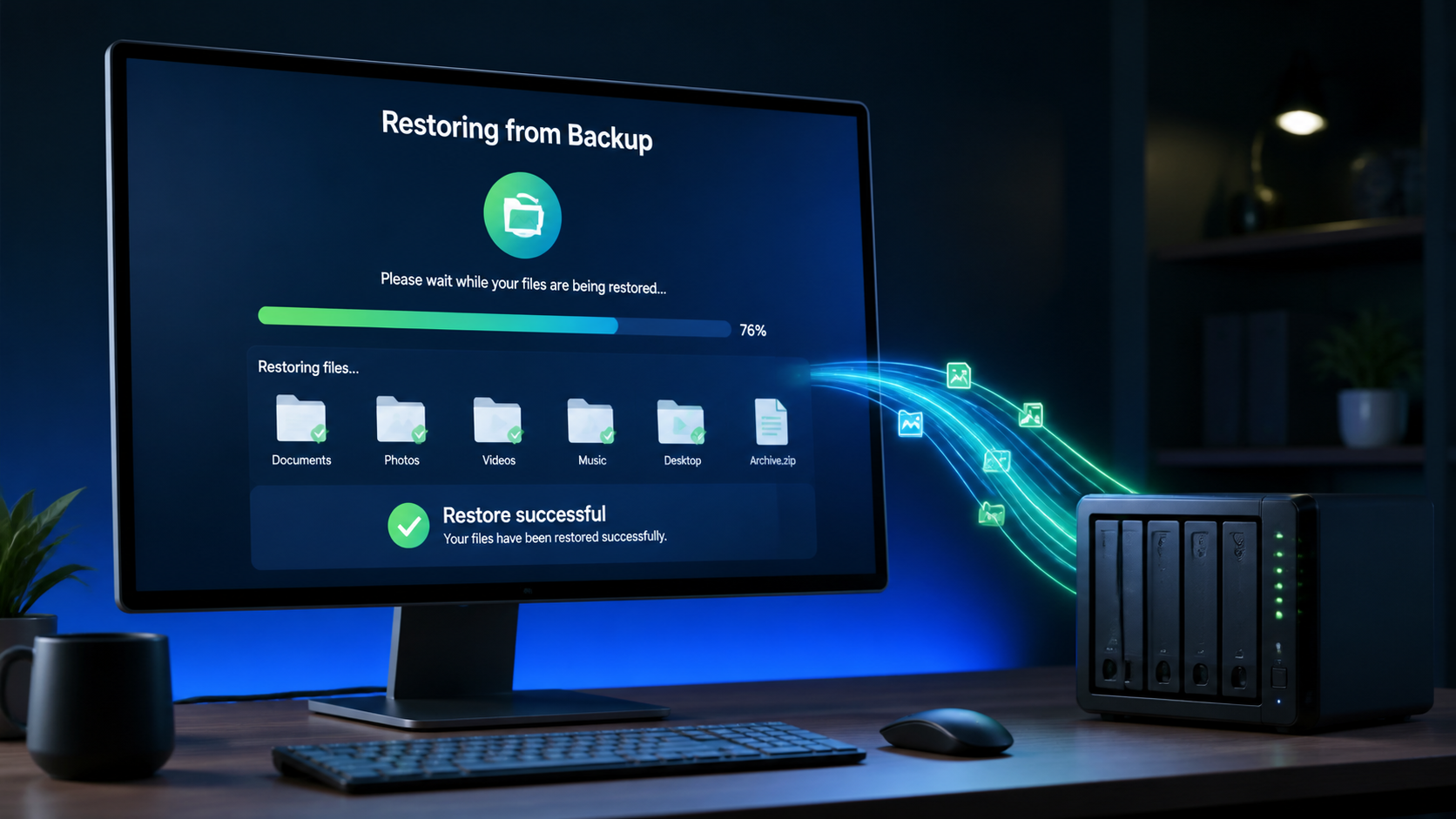
Using the .ubk repository stored on the DXP2800, I created a restore task and selected a new destination folder on the DXP6800 Pro. The restore completed successfully through the Tailscale connection, and the original file appeared in the new folder.
That successful restore was the most important part of the test. It confirmed that the remote backup was not merely creating repository files—it could also return the selected data to the source NAS when needed.
What I Learned from the Remote Tests
This was one of those situations where I couldn’t know exactly how everything would behave until I tested it under real-world conditions. I don’t have two separate internet connections at home that would let me place each NAS on a different network.
Once the DXP2800 was located off-site, I could properly test the process. The UGREENlink client ID worked for remote sync tasks but was rejected by the Backup & Restore utility. The Tailscale IP worked for both remote backup and sync tasks, and I successfully restored data through the Tailscale connection.
Your results could vary with future UGOS updates, so always begin with a small test folder and verify both the transfer and restore process before relying on the setup for important data.
Build a Backup Plan That Works for You
The important thing is to maintain at least three copies of your critical data, with two copies stored on different media and one kept off-site.
Your off-site copy could be stored on another NAS at an office, a friend or family member’s house, a cloud service, or even an encrypted USB drive stored somewhere secure. The right combination depends on how much data you have, how frequently it changes, and how quickly you would need to recover it.
Whatever approach you choose, automate as much as possible, keep version history where practical, monitor your backup jobs, and periodically test a restore. A backup task showing “Successful” is reassuring, but a verified restore is what proves your backup plan actually works.
Please be sure to sign up for a free patreon membership and join my ‘Tech Fans’ community for the full 3-2-1 Backup Strategy
💻 Hardware I Used: ✅ Some links on this post may be affiliate links, which help support me and help keep ads off here!
(Some links on this post may be affiliate links, which help support me and help keep ads off here!)
One of the big advantages of a UGREEN NAS is that you’re not necessarily locked into UGOS. UGREEN’s x86-based NAS hardware can also run alternative operating systems, and in this guide, I’ll walk through installing OpenMediaVault (OMV) on the UGREEN DXP2800 while preserving the original UGOS installation.
If you’re more interested in TrueNAS, I’ve also covered running TrueNAS on the UGREEN DXP4800 Pro, which provides another option for turning UGREEN hardware into a more customizable NAS platform.
What We’re Working With
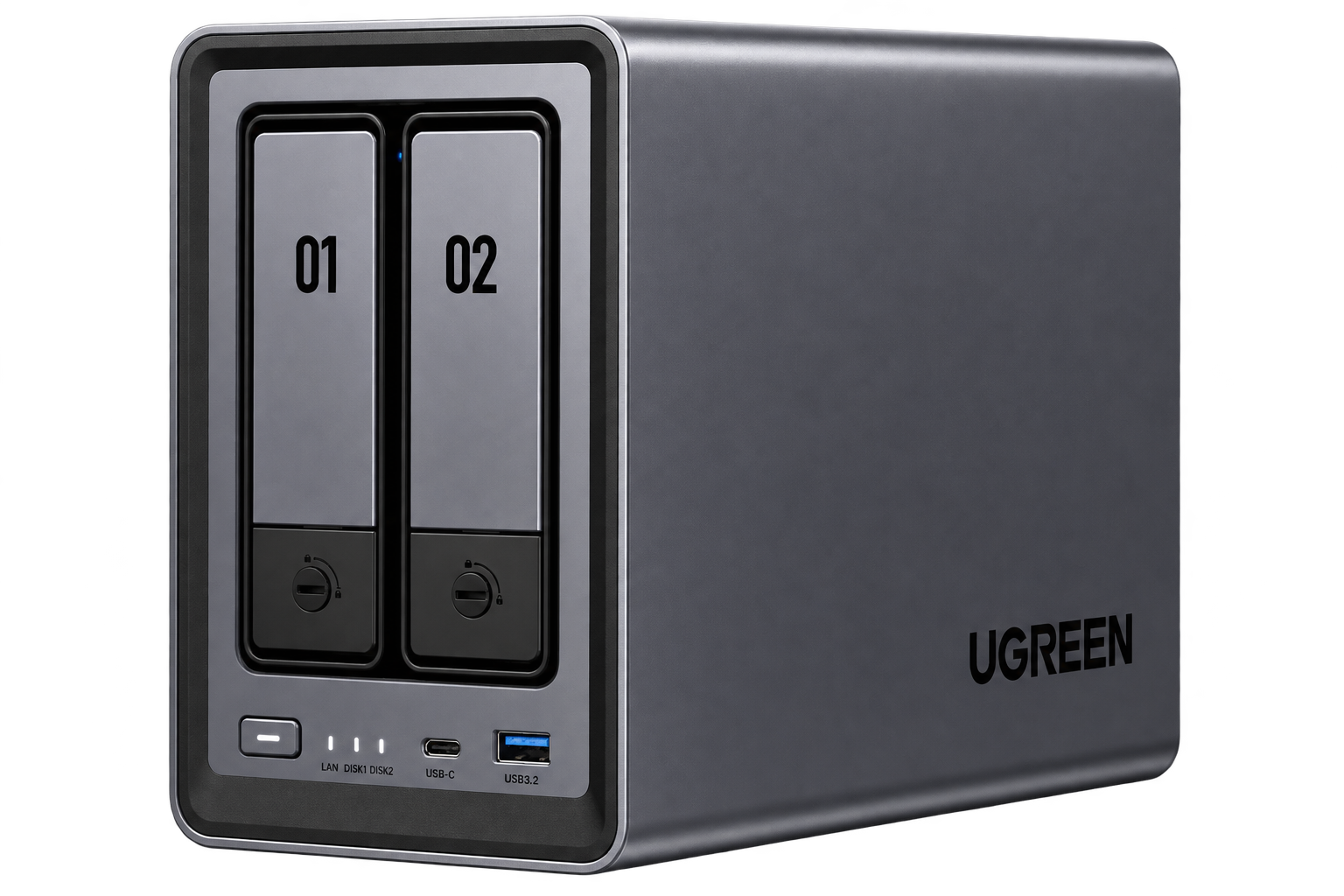
The UGREEN DXP2800 features an Intel N100 quad-core processor, 8GB of DDR5 memory, 2.5-Gigabit Ethernet, two M.2 NVMe slots, multiple USB ports, and HDMI output. For a compact two-bay NAS, there’s quite a bit of hardware to work with.
For this installation, I’m using two 2TB Seagate IronWolf hard drives for storage. I purchased the DXP2800 and both drives myself, and this project is not sponsored by UGREEN.
The DXP2800 ships with UGOS preinstalled on its internal 32GB eMMC storage. Because I want to preserve that installation, I’m installing OpenMediaVault onto a separate 256GB HP NVMe SSD instead of overwriting the internal eMMC. (Affiliate links are below which I may receive commission on)
Installing the NVMe Drive
Unlike some of UGREEN’s larger NAS models, the DXP2800’s two M.2 NVMe slots are located inside the drive bays rather than underneath the NAS. You’ll therefore need to remove the hard-drive trays to access them.
The NVMe drive slides into its M.2 connector at an angle and is secured with a convenient tool-free latch, so there’s no tiny M.2 screw to deal with. Once the NVMe is installed, the two hard drives can be seated in their trays and slid back into the NAS.
Using the ISO is worth distinguishing from some other OMV installations. OpenMediaVault can also be installed on top of an existing Debian installation, which is a common approach on hardware such as a Raspberry Pi. In this case, however, we’re turning the DXP2800 into a dedicated OpenMediaVault NAS.
Installing from the ISO gives OMV direct control over the system’s storage, RAID configuration, networking, and other NAS functions, making it a clean and straightforward option for this build.
Creating the OpenMediaVault Installer
Once the ISO has downloaded, flash it to a USB drive using a tool such as balenaEtcher.
Connect the DXP2800 to a monitor using HDMI and attach a keyboard. You’ll also need to insert the USB drive containing the OpenMediaVault installer and connect the NAS to your network using Ethernet.
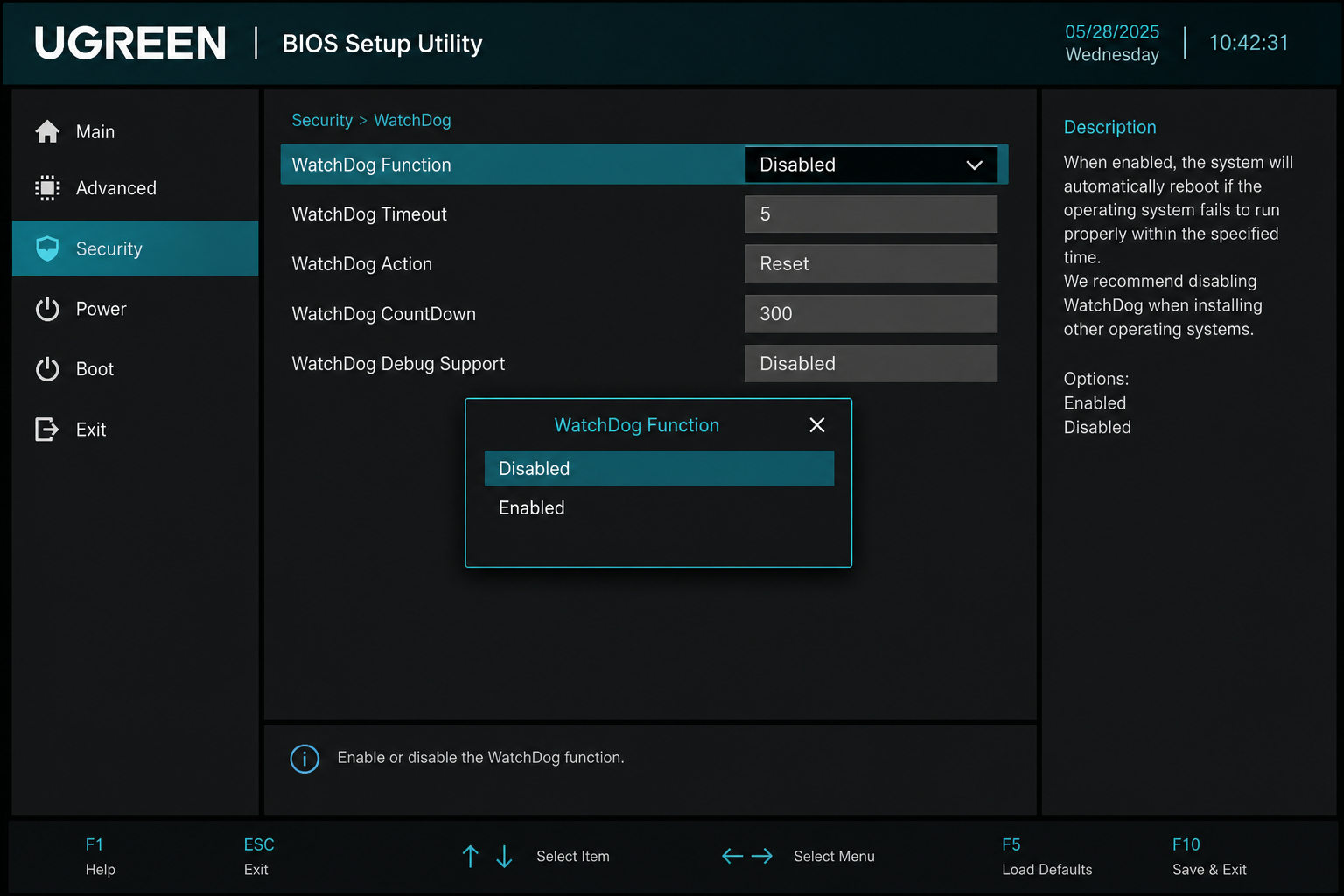
Power on the DXP2800. When the UGREEN splash screen appears, hold Control and repeatedly press F2 to enter the BIOS.
Disabling the UGREEN Watchdog
Before installing anything, we need to change an important BIOS setting.
UGREEN includes a ‘watchdog‘ function designed to automatically reboot the NAS if it doesn’t detect UGOS running after a few minutes. That’s useful when you’re actually running UGOS, but considerably less useful when you’re halfway through installing a completely different operating system.
Enter the BIOS settings and disable the watchdog before proceeding with the OpenMediaVault installation.
Identifying the Correct Boot Drive
Next, open the BIOS NVMe configuration and make sure you can clearly identify the drive you intend to use for OpenMediaVault.
In my case, the distinction is straightforward: my OpenMediaVault target is the 256GB HP NVMe SSD, while UGOS is installed on the NAS’s 32GB internal eMMC.
Make a note of which device is which. This becomes extremely important during installation because selecting the wrong target could erase your UGOS installation.
Next, confirm that the NAS is configured for UEFI boot mode, set the USB installer as the first boot device, save the BIOS changes, and reboot. When the OpenMediaVault installation menu appears, select Install.
Installing OpenMediaVault
The installer begins with the usual setup questions, including your location, preferred language, and keyboard layout.
You’ll then give the NAS a host name. This is the name that identifies the OpenMediaVault system on your network. I’m simply using openmediavault.
For the domain name, I’m using internal.
The installer will then ask you to create a password for the root account. It’s important to understand that this is the administrative password used when logging into the OpenMediaVault terminal or connecting through SSH. It is not the password for OMV’s web interface, which uses a separate admin account.
After setting your time zone, the installer may warn you that multiple drives have been detected. That’s expected in a NAS with several storage devices, so continue with the installation.
Forcing a UEFI Installation
You may encounter a somewhat intimidating prompt asking whether you want to force a UEFI installation. For this setup, select Yes.
This ensures that OpenMediaVault installs its boot-loader using the UEFI boot method we confirmed earlier in the UGREEN BIOS. That gives our target drive the appropriate UEFI boot files so the DXP2800 can recognize it as a bootable device.
Next, select the drive where OpenMediaVault will be installed. In my case, that’s the 256GB HP NVMe SSD.
Be especially careful at this step. The selected drive will be erased. Do not accidentally select the internal eMMC containing UGOS if you intend to preserve the original UGREEN operating system.
You may also encounter a screen asking for an HTTP proxy. I saw this when using the same installer on another computer but not when installing it on the UGREEN. Most home networks don’t require an HTTP proxy, so you can normally leave this field blank.
First Boot Into OpenMediaVault
Once installation finishes, remove the USB installer and reboot the NAS. Keep the monitor connected for the moment because we want to identify the IP address assigned to OpenMediaVault.
At the terminal login, enter root as the username followed by the root password you created during installation.
Normally, OMV displays its web interface IP address in the upper-left corner of the console. During my installation, however, Ethernet wasn’t detected when this screen initially appeared, and the displayed address didn’t automatically refresh.
If this happens, reconnect the Ethernet cable, wait a few seconds, and run either:
ip a
or:
ip -4 -br addr
This will display the NAS’s current network address. This appears to be more of a network-detection quirk than a normal part of installing OpenMediaVault.
Logging Into the OMV Web Interface
Enter the OpenMediaVault IP address into a web browser on another computer.
The default OMV web interface credentials are:
Username:admin Password:openmediavault
The first thing I recommend doing is changing that default password. Click the profile icon in the upper-right corner, select Account, choose Password, and create a new administrative password.
Remember that this web-interface password is separate from the root password we created during installation.
Updating OpenMediaVault
Before configuring storage, it’s a good idea to install the latest system updates.
Navigate to System → Update Management → Updates and install the available updates. Depending on when you perform the installation, there may be quite a few.
Throughout OpenMediaVault, you’ll also periodically see a yellow confirmation banner after changing settings. Be sure to click Apply when it appears. Otherwise, your configuration changes may not actually be committed.
Installing Linux MD RAID Support
Beginning with OpenMediaVault 7, the traditional Linux software RAID controls were moved out of the main interface and into an official plugin. For a NAS operating system, I personally think RAID configuration could be a little more front and center—or at least offered during the initial setup—but fortunately, installing the plugin is easy.
Navigate to System → Plugins and search for MD or RAID. Locate the Linux MD plugin and install it.
If you prefer ZFS, that’s another option. The openmediavault-zfs plugin is available through OMV-Extras and provides ZFS storage pools with features such as mirrors and RAIDZ. ZFS is extremely powerful, but it also requires a little more setup.
For this two-drive NAS, I’m keeping things simple and using Linux MD to create a traditional RAID 1 mirror.
Creating the RAID 1 Array
After installing the MD plugin, navigate to Storage → Multiple Device, click the plus (+) button, and select Mirror.
Select both hard drives and save the configuration. OpenMediaVault will then begin building and synchronizing the RAID 1 array.
Normally, the next step would be creating a file system such as EXT4 or Btrfs. My drives were previously used together in the same RAID configuration for another project, so OMV detected their existing Btrfs file system and I didn’t need to create another one.
You also don’t necessarily have to wait for RAID synchronization to finish before creating a file system, mounting the array, or configuring shared folders. Synchronization can continue in the background, although the array does not have full redundancy until synchronization is complete.
Mounting the File System
Once the file system is ready, use the Play/Mount button, select the appropriate file system, and click Save.
When the yellow confirmation banner appears, click Apply to commit the change.
Your RAID storage is now mounted and ready for OpenMediaVault to use. Next, create a user account for accessing the NAS.
Navigate to the user-management section, click the plus (+) button, and select Create. Enter the username and other requested information.
I’m also adding my user to the SSH group so the account can access the NAS remotely through a shell when needed.
Enabling SMB and Rsync
OpenMediaVault supports several network services, but two particularly useful ones are SMB/CIFS and rsync.
For rsync, navigate to Services → Rsync, enable the server, and leave the default port at 873 unless you have a particular reason to change it.
Next, navigate to Services → SMB/CIFS and enable SMB. SMB provides convenient network file sharing with Windows, macOS, Linux, and many other devices.
Creating a Shared Folder
With our storage mounted and services enabled, we can create a network share.
Navigate to Storage → Shared Folders, click Create, give the folder a descriptive name, and select your RAID storage. You can also change the relative folder path if you don’t want to use the default.
OpenMediaVault will display the default permissions for the folder. Administrators and users can typically read and write, while guests have more restricted access. Adjust these permissions as needed and save the configuration.
Testing the NAS From macOS
To verify everything is working, I’m connecting from a Mac.
Open Finder, select Network, and double-click openmediavault. Connect using the credentials for the user account created earlier.
Once connected to the shared folder, try creating a test directory and copying over a few files. If you can create folders and transfer files successfully, your OpenMediaVault NAS is officially up and running.
From here, you can create separate shares for backups, photos, videos, personal documents, or whatever else you want to store on your NAS.
Expanding OMV With Plugins
One of OpenMediaVault’s strengths is how much functionality can be added after the basic installation.
OMV-Extras provides access to an additional collection of community-maintained plugins. One of the most useful is the Compose plugin, which provides Docker and Docker Compose integration through OpenMediaVault. This opens the door to running self-hosted applications such as Jellyfin, Immich, Nextcloud, and many others.
The Backup plugin can help protect the OpenMediaVault system itself, while BorgBackup provides versioned, compressed, and encrypted backups of your data. There are also plugins for displaying CPU temperatures, adding two-factor authentication, and integrating ClamAV antivirus scanning.
These extras can turn a relatively straightforward file server into a much more capable self-hosting platform.
Automating Backups With Rsync
OpenMediaVault also lets you schedule commands and recurring jobs.
For example, you could configure an rsync job to copy one of your shared folders to an external USB drive every Sunday morning. The initial backup would copy the entire dataset, while subsequent runs would generally only need to transfer files that are new or have changed.
You could take this considerably further with scheduled network backups, BorgBackup, additional NAS targets, and other strategies.
Each of those topics could easily become a tutorial of its own, so for this guide, we’re sticking with getting the core NAS functionality working.
Is OpenMediaVault a Good Fit for a UGREEN NAS?
I think OpenMediaVault occupies a nice middle ground between UGOS and TrueNAS.
On one side, OMV is open source, highly customizable, and backed by a large community. It gives you considerably more freedom than a vendor-specific NAS operating system such as UGOS, although the experience isn’t always as turnkey or polished.
On the other side, OpenMediaVault can feel more approachable than TrueNAS. Its plugin architecture makes it relatively easy to add functionality as you need it, while TrueNAS provides more advanced storage capabilities out of the box, particularly around ZFS, snapshots, replication, and larger or more complex storage environments.
If you want something more flexible than UGOS without immediately jumping into the deeper end with TrueNAS, OpenMediaVault can be an excellent fit for UGREEN hardware—especially if you enjoy tinkering and want more control over how your NAS works.
A NAS, gives you an incredible amount of control over your files, applications, backups, and media. But once you start thinking about accessing your NAS remotely, security becomes just as important as convenience.
UGREEN provides its own remote-access service, UGREENlink, but you don’t necessarily have to use it. If you prefer a platform-independent solution that works across different NAS brands, servers, computers, and mobile devices, Tailscale is an excellent alternative.
In this guide, we’ll go through several security best practices for a UGREEN NAS, including reducing unnecessary services, strengthening account security, configuring the built-in firewall, and finally using Tailscale for secure remote access.
Reduce Your NAS Attack Surface
One of the simplest ways to improve NAS security is to reduce the number of services that are available in the first place.
If you’re not using UGREEN Remote Access, you can disable it. The same principle applies to other services and applications installed on your NAS. If you don’t use something, there is little reason to leave it running.
Unused applications should also be removed, and services such as UPnP should generally remain disabled unless you specifically need them. Every unnecessary service is another potential entry point that you have to maintain and secure.
Review UGREEN’s Built-In Security Settings
UGOS includes several security controls that are worth reviewing even if many of them are enabled by default.
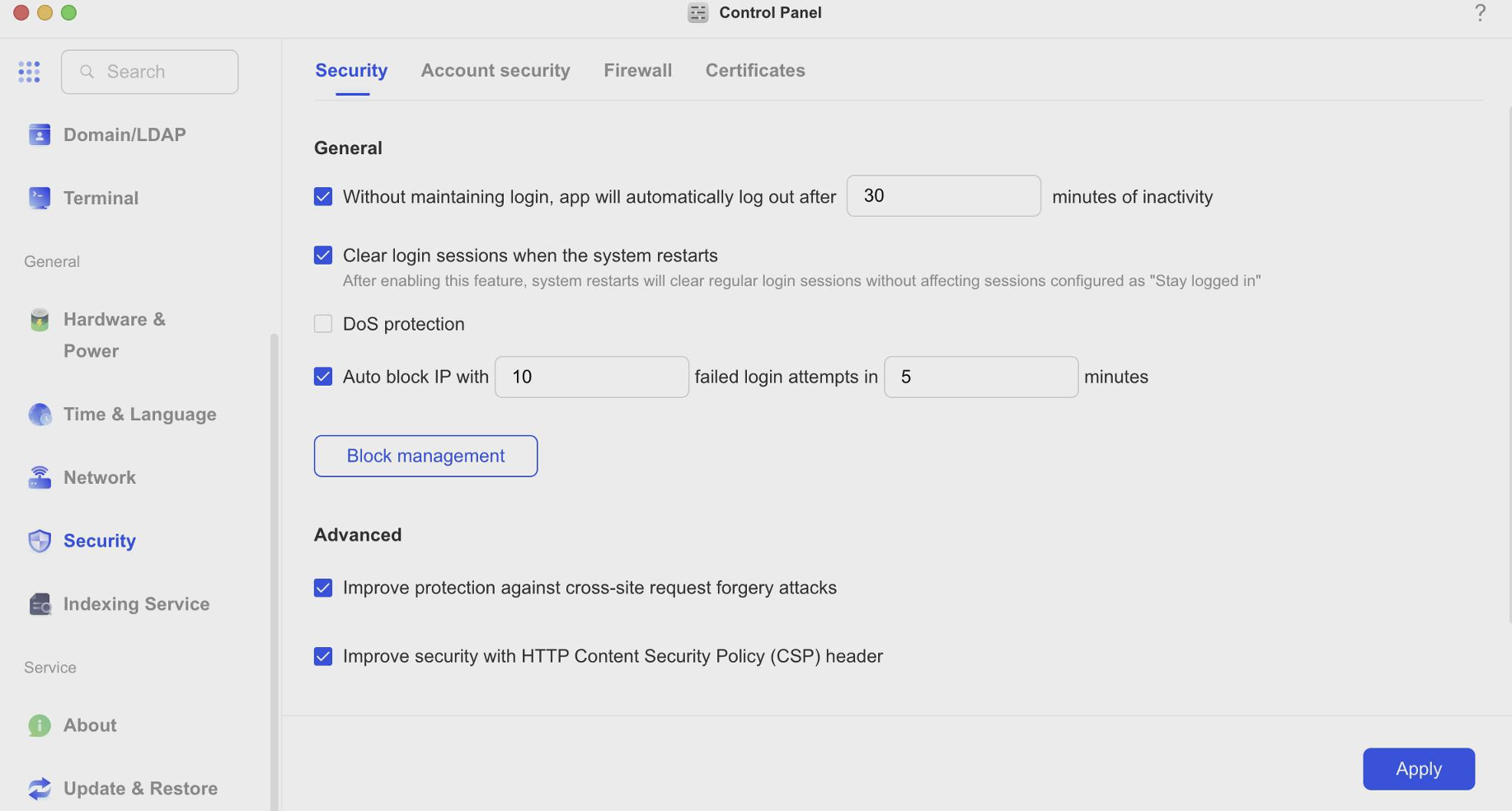
Inside the UGREEN Control Panel, open the Security section and review the available options.
One setting controls how long an inactive management session can remain open before you are automatically logged out. Another option can clear active user sessions whenever the NAS restarts, requiring everyone to authenticate again.
These aren’t dramatic security features by themselves, but together they reduce the chance that an unattended or previously authenticated session remains accessible.
A DoS attack occurs when another system intentionally overwhelms a device with network traffic to the point where it slows down or becomes unavailable.
UGOS can monitor TCP, UDP, and ICMP traffic for behavior that could indicate this type of attack. Enabling all three protections gives the NAS another layer of defense against suspicious network activity.
Configure Automatic IP Blocking
Another important setting controls failed login attempts.
You can configure the NAS to automatically block an IP address after a certain number of incorrect password attempts within a specified period of time. This can help slow down automated login attempts and basic brute-force attacks.
UGOS also provides a Block List where you can review addresses that have been blocked or manually add addresses yourself.
There is also an optional Whitelist. This allows you to identify trusted IP addresses that should never be automatically blocked. For example, you might whitelist a trusted computer on your local network so repeated login mistakes don’t accidentally lock that system out.
Use TLS 1.2 or Later
UGOS also includes a TLS configuration option.
This particular setting does not turn HTTPS on or off. Instead, it determines which versions of the TLS encryption protocol the NAS is allowed to use when an HTTPS connection is established.
Leaving the minimum version set to TLS 1.2 or later helps prevent connections from falling back to older and less-secure encryption protocols.
Strengthen Your UGREEN Account Security
Your NAS security is only as strong as the accounts that can access it.
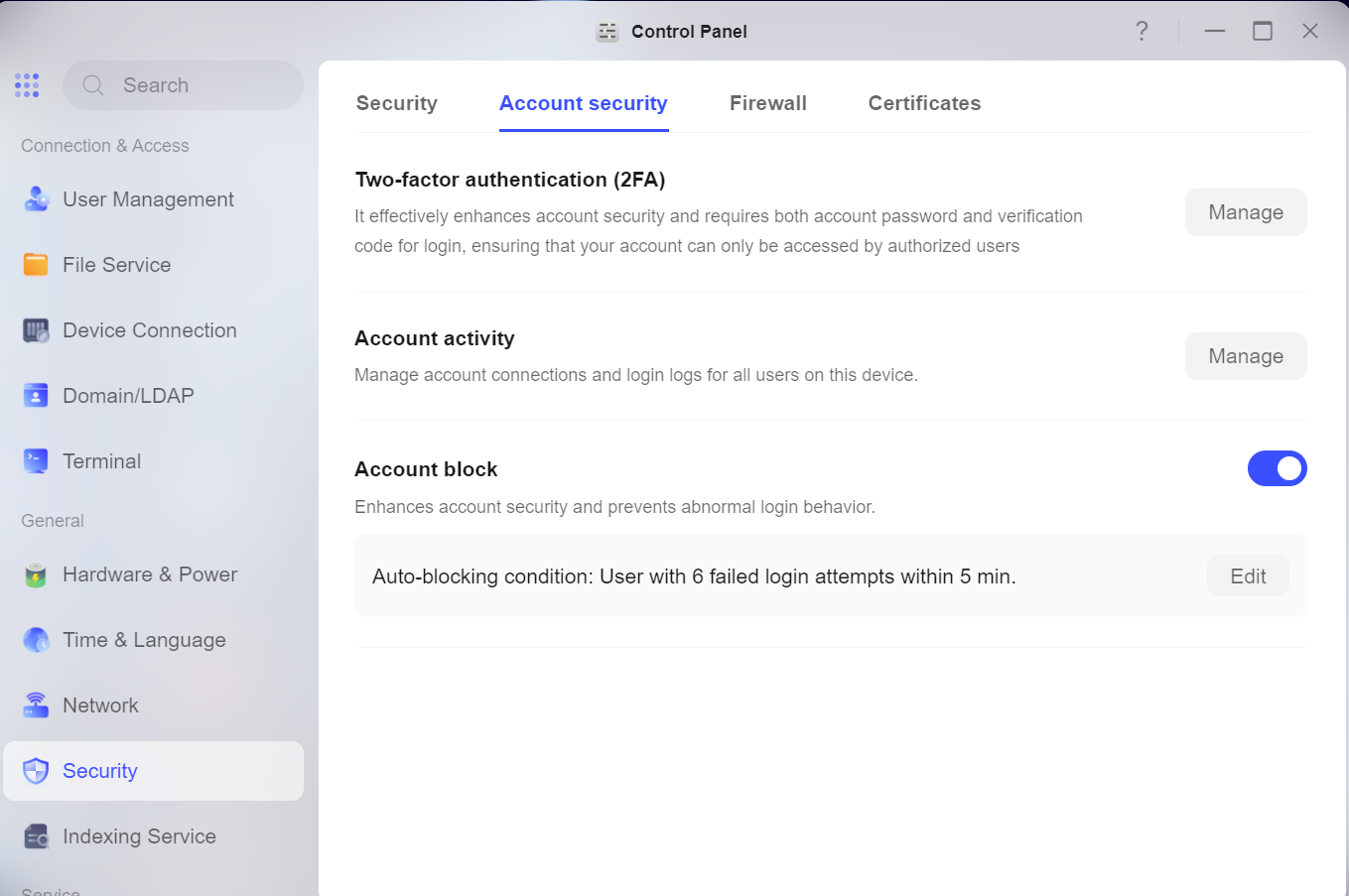
Use a strong, unique password and enable two-factor authentication whenever possible. Two-factor authentication adds another layer of protection because gaining access requires more than simply knowing the password.
UGOS also provides an Account Activity section where you can see which users are currently connected, how they’re connected, and information about the device or IP address being used.
If you notice an unfamiliar connection, you can terminate that session directly from the interface.
UGREEN also provides account-level blocking, which offers another method of limiting repeated failed login attempts against individual user accounts.
Configure the Firewall with Default-Deny Approach
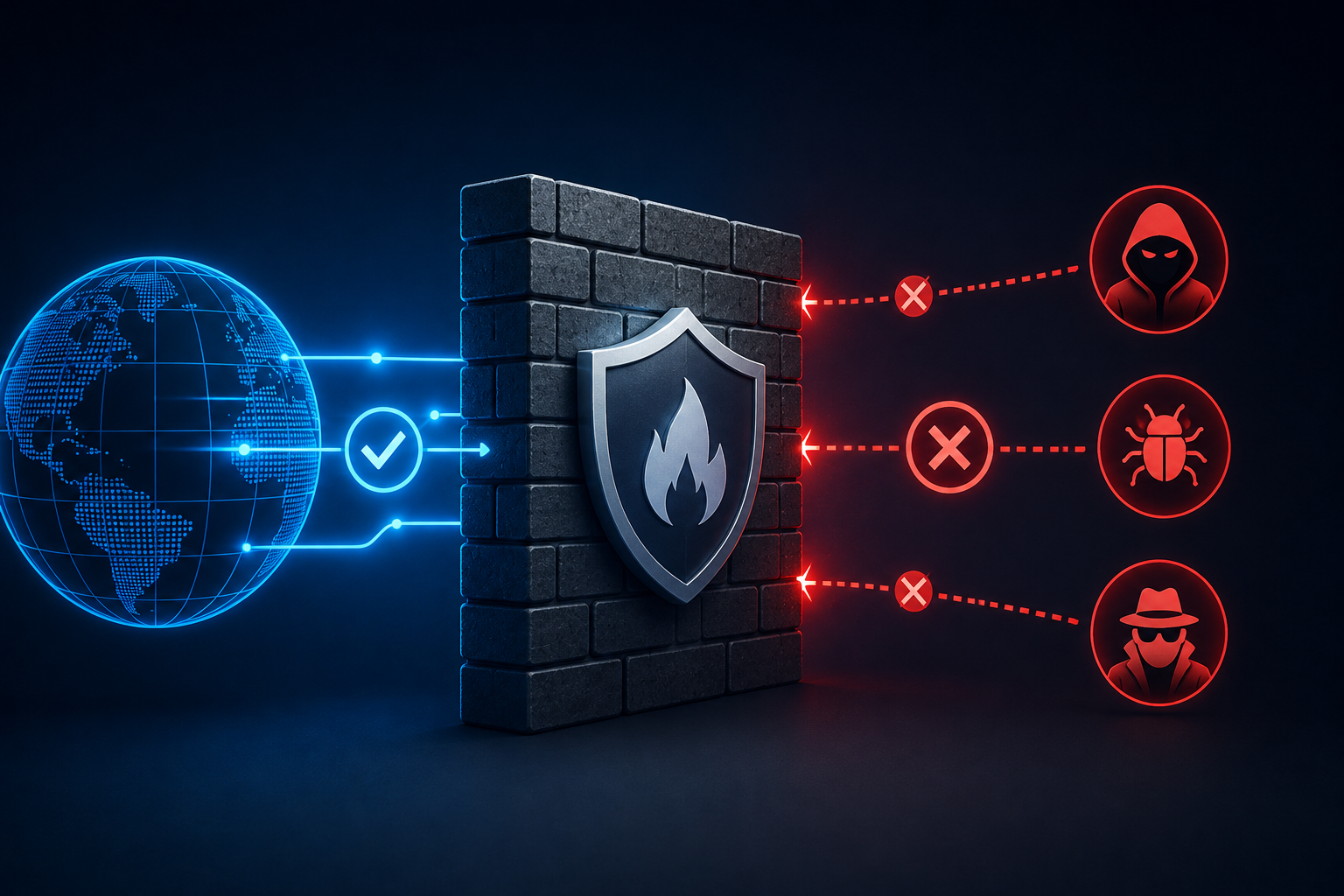
UGREEN includes a built-in firewall that can provide another layer of protection.
If you already use a dedicated firewall such as UniFi, pfSense, or OPNsense, that device will usually remain your primary line of defense. However, enabling the NAS firewall can still provide some additional protection directly on the device.
When configuring firewall rules, I prefer a default-deny approach. Instead of asking which services should be blocked, ask which services actually need to be allowed.
For example, if you use SSH, SMB, and NFS, you can create allow rules specifically for those services.
If you don’t use services such as FTP or WebDAV, there’s usually no reason to create separate firewall rules specifically denying them. Simply leave those services disabled in UGREEN’s file-service settings.
What About Geo-IP Blocking?
UGREEN also provides Geo-IP filtering.
If you’re using a typical consumer router without advanced firewall capabilities, Geo-IP filtering can provide another useful layer of protection by blocking connection attempts from countries where you don’t expect legitimate traffic to originate.
However, Geo-IP blocking should never be treated as a replacement for strong passwords, multi-factor authentication, or secure remote-access practices.
More advanced firewall platforms such as UniFi, pfSense, and OPNsense are generally better equipped to handle Geo-IP filtering, VLAN policies, and more complex network rules.
UGREENlink vs. Tailscale
UGREEN includes its own remote-access service called UGREENlink, which provides encrypted access to your NAS from outside your home network.
There’s nothing inherently wrong with using it.
However, some users may prefer a remote-access solution that isn’t tied to a particular NAS manufacturer. That’s where Tailscale becomes particularly useful.
Tailscale uses WireGuard-based encrypted connections and creates a private network between your authorized devices. It gives you a consistent way to access not only your UGREEN NAS, but also other servers, computers, and services in your homelab.
Installing Tailscale on a UGREEN NAS with Docker
For this configuration, Tailscale runs inside a Docker container.
First, make sure the Docker application is installed on your UGREEN NAS through the App Center.
Next, open File Manager and locate your shared docker directory. Inside that directory, create a folder named:
tailscale
Inside the Tailscale folder, create another folder named:
state
I recommend keeping these directory names lowercase because the volume paths in the Docker Compose YAML file need to match the directory names exactly.
Import the Tailscale YAML File
Open the Docker application and select Project, then choose the option to create a new project.
Use the Import option and select the Tailscale YAML file.
Rather than manually creating each Docker container setting through the graphical interface, the YAML file defines the container configuration for you. Once imported, you can review and modify the configuration before deployment.
If you don’t already have one, create a free account at Tailscale.
You should also install Tailscale on the device you’ll use when accessing the NAS remotely. This could be your laptop, desktop computer, tablet, or smartphone.
Once a device is connected to your account, it becomes part of your tailnet.
A tailnet is essentially the private network created between all of the devices connected to your Tailscale account.
Generate a Tailscale Authentication Key
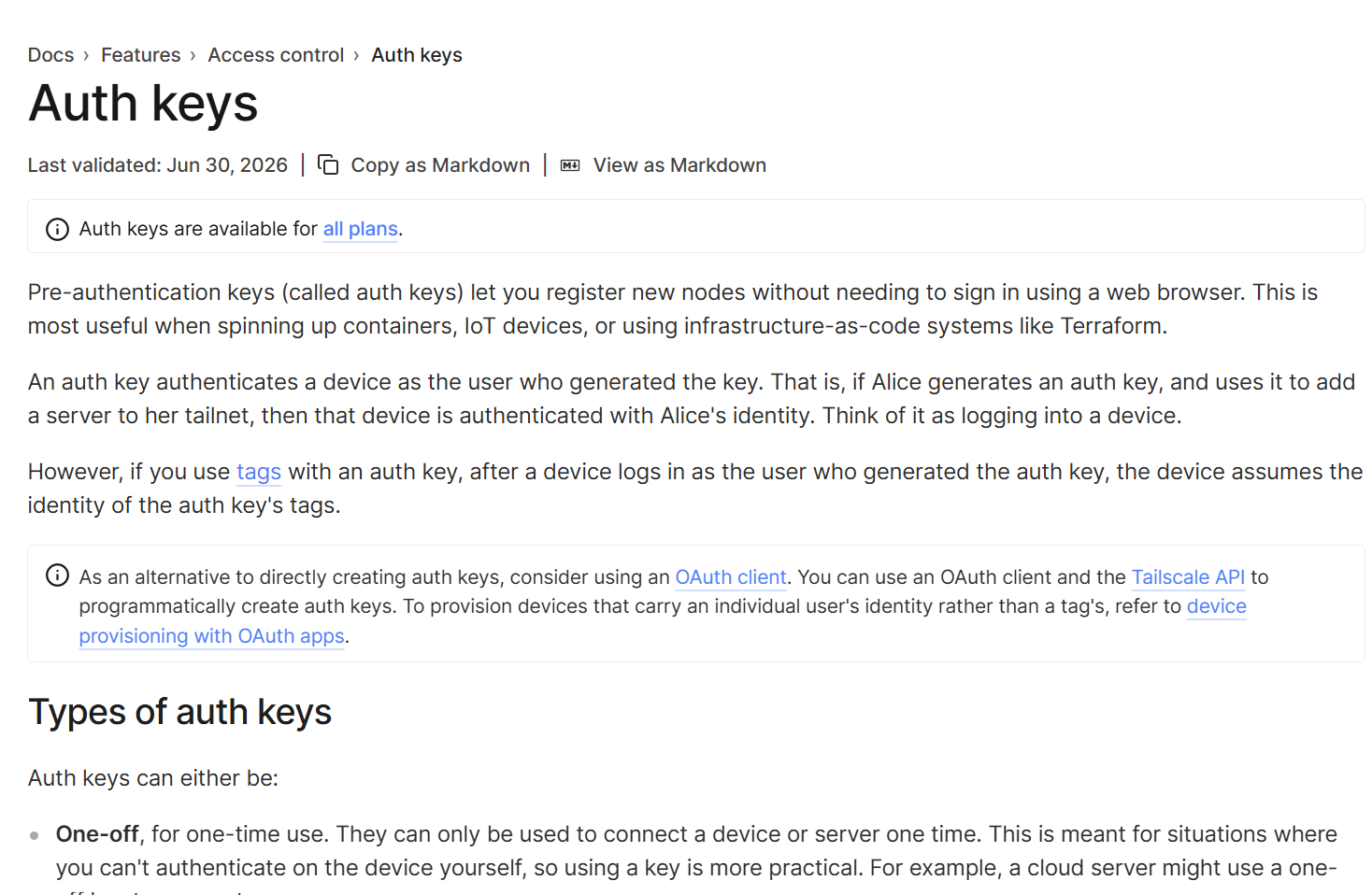
To add the UGREEN NAS to your tailnet, log into the Tailscale web interface and open the Keys section under your account settings.
Generate a new authentication key and give it a recognizable name such as:
ugreennas
You can also configure an expiration date for the key.
Tailscale provides an option to make devices ephemeral, meaning they can automatically disappear from your tailnet after going offline. For a NAS that remains part of your network permanently, I generally leave that option disabled.
Once the authentication key is generated, copy it to your clipboard.
Add the Authentication Key to Your YAML File
Return to the Tailscale project you imported into UGREEN Docker.
Inside the YAML configuration, locate the Tailscale authorization environment variable and replace the generic placeholder key with the authentication key you just generated.
You should also carefully review the volume path.
The path on the left side of the volume mapping refers to the folders located on your UGREEN NAS. Make sure the directory names match the folders you created earlier, including capitalization.
The path on the right side represents the corresponding location inside the Docker container and generally doesn’t need to be changed.
Once everything looks correct, deploy the project.
Verify Your NAS in Tailscale
After the container starts, return to the Tailscale administration page.
Your UGREEN NAS should now appear as another connected device on your tailnet.
Tailscale will assign the NAS a Tailscale IP address and can also provide a MagicDNS hostname, which makes accessing devices easier because you don’t have to remember individual IP addresses.
Access the UGREEN Web Interface Remotely
Once both your remote device and UGREEN NAS are connected to Tailscale, you can access the UGOS management interface through your private tailnet.
Enter the NAS’s Tailscale address or MagicDNS hostname into your browser along with the port used by the UGREEN web interface.
You can then log into UGOS using your normal NAS username and password.
The important difference is that you’re reaching the NAS through your private Tailscale connection rather than exposing the NAS management interface directly to the public internet.
Access Immich Remotely Through Tailscale
The same method works for applications running on your NAS.
For example, if you’re hosting an Immich photo library on your UGREEN NAS, you can connect to it remotely using Tailscale. On your phone, enable Tailscale and open the Immich app. For the server address, enter the MagicDNS hostname or Tailscale address for your UGREEN NAS followed by Immich’s port: 2283
This allows your phone to communicate directly with the Immich server through your private Tailscale network, even when you’re away from home and using cellular data or another Wi-Fi network.
If you want to see my blog post about configuring immich on the UGREEN NAS, click here!
Security Is About Layers
There isn’t one setting that suddenly makes a NAS secure.
Good security comes from combining multiple layers.
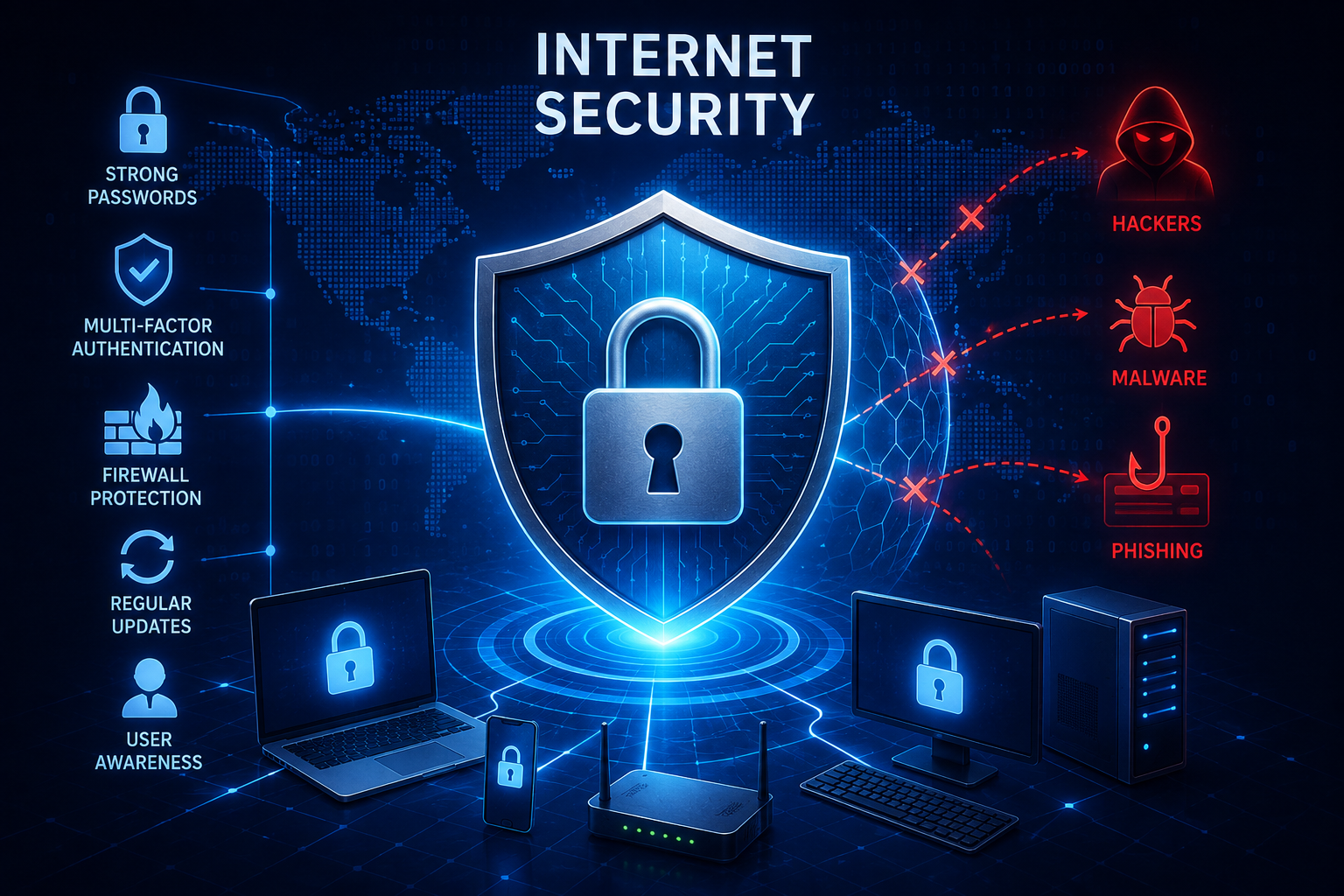
Disable services you don’t need. Keep UGOS, applications, and Docker containers updated. Use strong passwords and multi-factor authentication. Enable automatic blocking and firewall protections where appropriate. Avoid exposing NAS management ports directly to the internet.
And when you need remote access, a private networking solution such as Tailscale can provide a much safer and more flexible alternative to simply forwarding ports through your router.
The goal isn’t to make your NAS impossible to reach. It’s to make sure that only the people and devices you trust have a path to it!
Please be sure to sign up for a free patreon membership and join my ‘Tech Fans’ community for the full tutorial for configuring Tailscale on UGREEN NAS
💻 Hardware I Used: ✅ Some links may be affiliate links, which help support me and help keep ads off here!
Google Photos is convenient, but its free 15 GB of storage can disappear quickly once you start uploading a large photo library or high-quality video. Immich provides an open-source alternative that lets you store and manage your collection on hardware you control. In this guide, we’ll install Immich on a UGREEN NAS using the built-in Docker application and its Projects feature.
This walk through uses a UGREEN DXP6800 Pro, but the standard Immich configuration is designed to work across Intel-, AMD, and ARM-based UGREEN NAS devices. The result is a dedicated photo application with automatic mobile backups, albums, facial recognition, Smart Search, location-based browsing, and other familiar photo-management features.
Why Use immich?
UGREEN includes its own photo application, but Immich offers a dedicated web and mobile experience that opens directly to your library. Your original photos and videos remain on your NAS, and core features such as facial recognition, object detection, metadata indexing, and AI-powered searches can run locally instead of requiring your entire collection to be processed by a cloud photo service.
Immich can still connect to outside services for maps, software updates, and optional integrations, but your core library and machine-learning processing remain under your control. That makes it a compelling option for anyone who wants the convenience of a modern photo platform without relying entirely on third-party storage.
Install the UGREEN Docker App
Begin by opening the UGREEN App Center and installing Docker. Immich uses several containers that work together, including the main Immich server, a PostgreSQL database, valley, and the machine-learning service. Docker Projects lets us deploy and manage those components together as one application stack.
Create the immich Folder Structure
Open File Manager, navigate to the Docker shared folder, and create a folder named immich. Inside it, create three additional folders named library, postgres, and model-cache. The library folder stores uploaded photos, videos, and generated media; postgres holds the database that tracks users, albums, dates, locations, permissions, and other library information; and model-cache stores the downloaded models used by Immich’s machine-learning features.
Create the Docker Project
Open Docker, select Project, and choose ‘Create’. Give the project a clear name such as Immich, then select the Docker/immich folder you created earlier as its location. The Compose configuration screen is where you will import the YAML file that defines the complete Immich stack.
Import the immich Yaml
Rather than copying YAML from a web page or PDF, use the exact immich.yaml file provided with the companion guide. Downloading and importing the file preserves its indentation and avoids subtle formatting errors that can prevent Docker Compose from working.
The standard machine-learning image in this guide works across Intel-, AMD, and ARM-based UGREEN systems. Immich also offers OpenVINO acceleration for compatible Intel hardware, which can speed up AI tasks such as facial recognition and Smart Search. The largest difference is usually noticeable while Immich processes the existing library for the first time; afterward, it generally processes only newly added photos and videos.
The YAML also includes a database password in two locations: one for the Immich server and another for PostgreSQL. Replace the placeholder with your own strong password and make sure both entries match exactly. This is an internal database connection password rather than the password you will use to sign into Immich, but it should still be stored safely in a password manager.
Immich uses port 2283 by default. Once you have reviewed the configuration, import immich.yaml and select Deploy. Docker will download the required images and start the services, which can take several minutes on the first run.
Open immich & Create Admin Account
When deployment finishes, open a browser and enter your NAS IP address followed by port 2283, such as http://192.168.1.100:2283. The first account created becomes the Immich administrator, so enter your name, email address, and a strong password you can keep secure.
After signing in, select your profile icon and open Administration. This area lets you add users, review storage information, monitor background jobs, and adjust machine-learning settings. You may not need to change anything immediately, but it is useful to know where these controls live before uploading a large library.
Connect immich mobile app
Install the official Immich mobile app from the Apple App Store or Google Play Store. When prompted for the server address, enter the local address of your NAS followed by port 2283, then sign in using the account you created. This local address normally works only while the phone is connected to your home network.
Choose Photos to Back up
Allow Immich to access the photos and videos on your phone. On an iPhone, choose access to all photos if you want the app to back up your complete library. Select the cloud icon in the upper-right corner, choose the phone albums you want to include, and enable backup. Immich will begin uploading the selected photos and videos directly to your NAS.
Return to the Immich web interface and confirm that the selected albums and media are appearing in the library. You can also open the Docker/immich/library folder on the NAS to verify that Immich is writing files to the assigned storage location.
Manage photos through the Immich application instead of moving, renaming, or reorganizing files directly inside the NAS folders. Immich relies on its database to connect the original files with albums, thumbnails, users, dates, locations, and other information. Manual changes inside the storage folders can cause the database and files to fall out of sync.
Accessing immich Remotely
The local NAS address used in this guide is intended for devices connected to your home network. For remote access, Tailscale provides a secure way to connect to Immich without opening ports on your router or exposing the application directly to the internet. Remote access deserves its own walk through, so it is best configured after confirming that Immich works correctly on the local network.
Final Thoughts
At this point, Immich is running on the UGREEN NAS, the mobile app is connected, and selected photos and videos are backing up to storage you control. This guide focuses on getting the platform installed and working, but Immich also includes shared albums, facial recognition, OCR text recognition, Smart Search, location-based browsing, and many other features worth exploring.
If you’re looking for a guide for running Jellyfin on Ugreen, check out my post here!
For the downloadable immich YAML file and more detailed setup notes, visit the Mackey Tech Patreon guide.
💻 Hardware Used:
✅ Some links may be affiliate links, which help support me and help keep ads off here!
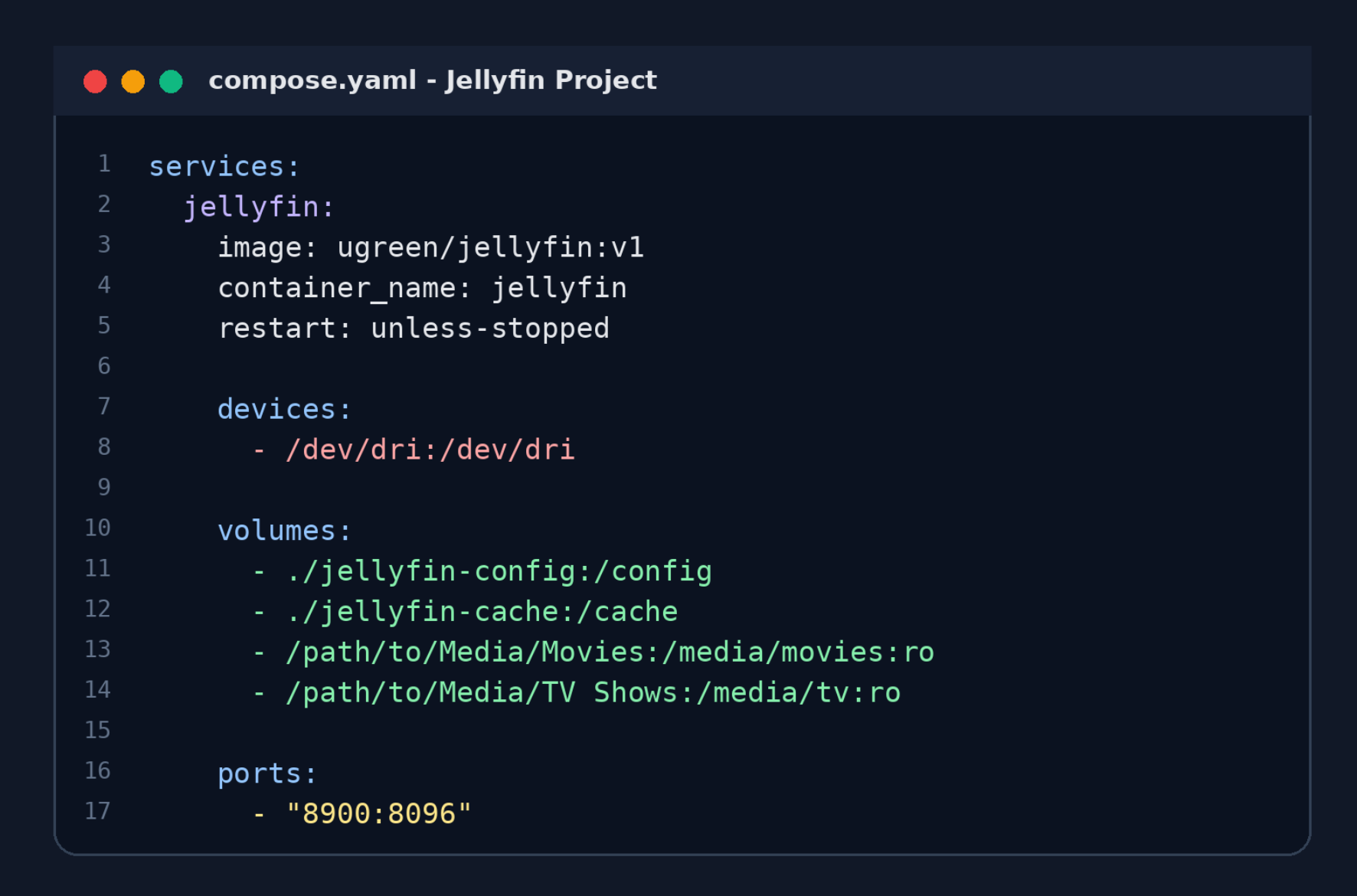
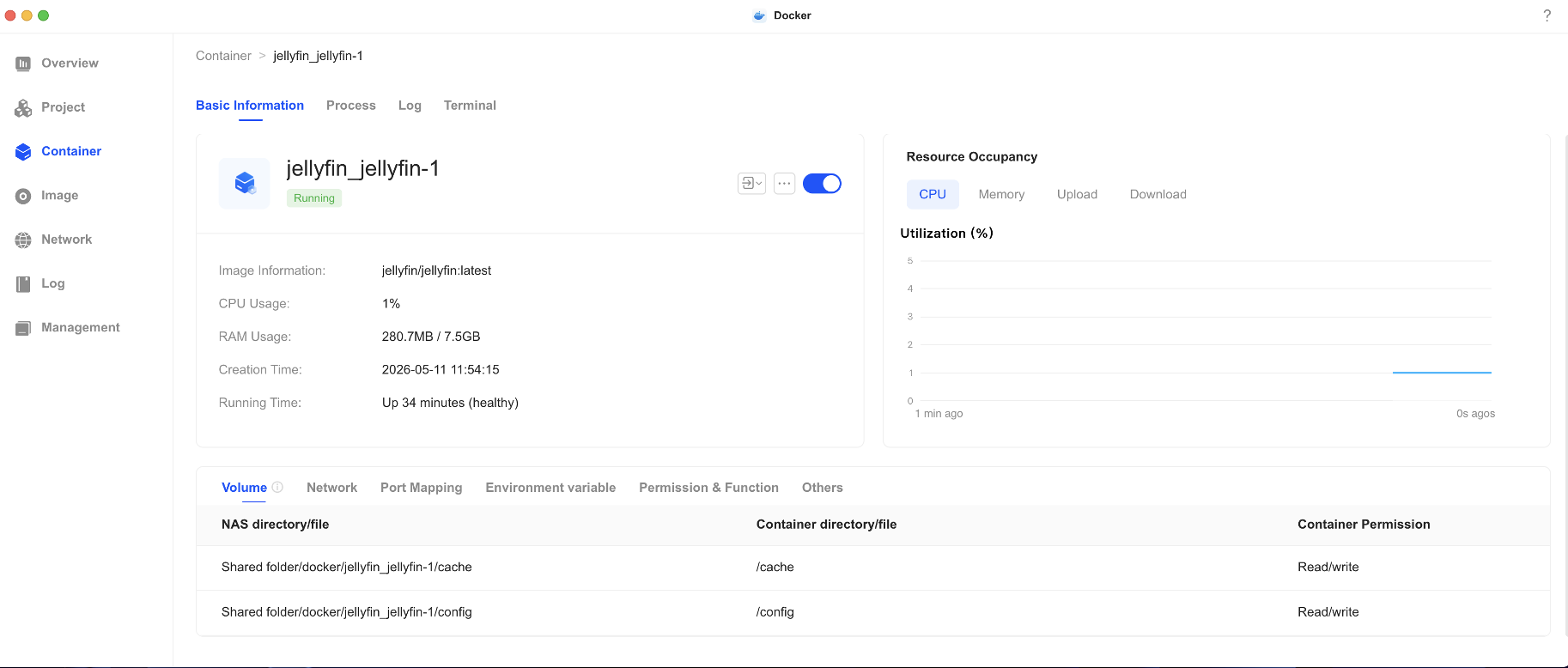
The path on the left points to the real folder on the UGREEN NAS. The path on the right is where Jellyfin sees
that folder inside its container. When adding a library in Jellyfin, you select the container path, not the original
UGOS file-system path.
For example, if this mapping is used:
*/path/to/Media/Movies:/media/movies:ro
Jellyfin will browse the folder as /media/movies. The optional ‘:ro’ makes the mount read-only, allowing
Jellyfin to scan and play the files without modifying or deleting them.
Where Should You Store Your Media?
The relative paths used for Jellyfin’s configuration and cache keep those files inside the Docker Project
directory. This is convenient and makes the application easier to manage.
For a permanent media library, it is usually better to store movies and television shows in separate shared
folders outside Docker’s default project directory. This keeps your personal media separate from the
application files and makes it easier to:
• Access the media through SMB or the UGREEN File Manager
• Back up the media separately from the Jellyfin application
• Rebuild or replace the Jellyfin container without moving the library
• Allow other applications to access the same media collection
A sensible arrangement is to keep /config and /cache with the Docker Project while mapping your existing
Movies and TV Shows shared folders into the container.
Deploy the Project and Open Jellyfin
YAML is indentation-sensitive, so use spaces rather than tabs and verify that each section is aligned
correctly. Deploy the project and confirm that the Jellyfin container is running.
The example port mapping is:
* 8900:8096
The first number is the port used on the NAS. The second number is Jellyfin’s internal HTTP port. If the NAS
has the local IP address 192.168.1.100, open: http://192.168.1.100:8900
You may replace port 8900 with another unused NAS port. The internal port normally remains 8096.
Complete the Jellyfin Web Setup
The first time you open Jellyfin, the setup wizard will guide you through the basic configuration:
• Select your preferred language.
• Create the administrator account and choose a strong password.
• Create separate libraries for Movies, Shows, Music, Home Videos, and other content types.
• Select the container-side folder paths, such as /media/movies and /media/tv.
• Choose the preferred metadata language and country.
• Decide whether Jellyfin should allow remote connections.Allowing remote connections in Jellyfin does not automatically make the server securely accessible from the internet. Avoid directly forwarding the Jellyfin port unless you understand the security implications. A private-access service such as Tailscale is often a simpler option.
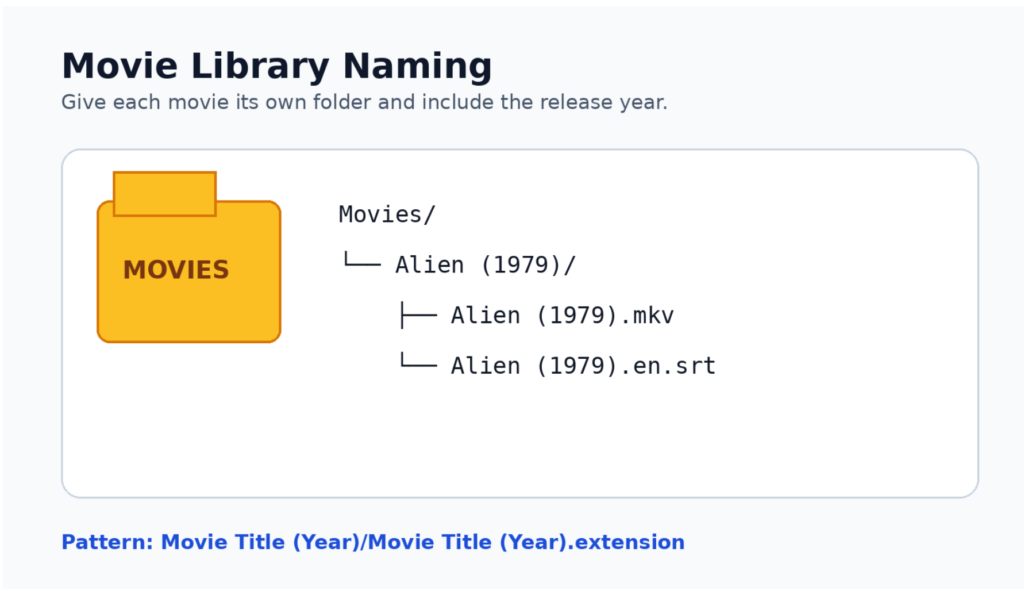
Organizing Movie Libraries
The release year helps Jellyfin distinguish remakes and similarly named movies. Giving each movie its own
folder also makes posters, subtitles, extras, and alternate versions easier to manage.
Organizing TV Show Libraries
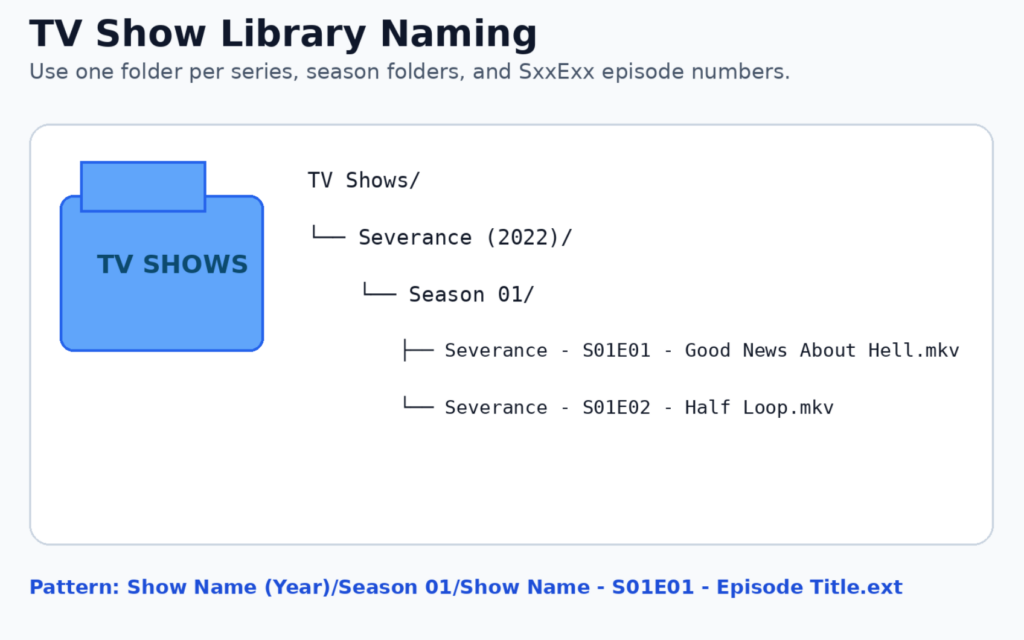
The most important part of an episode filename is the season-and-episode identifier, such as S01E01.
Specials are commonly placed in a Season 00 folder, and a file containing multiple episodes can use a
format such as S01E01-E02.
Direct Play and Transcoding
Direct Play sends the original file to the playback device without converting it. This uses relatively little
processing power. Transcoding occurs when Jellyfin must convert the video, audio, container, resolution,
bitrate, or subtitles for the client device.
Transcoding may be required when a client does not support the original codec, the available bandwidth is
limited, a lower streaming quality is selected, subtitles must be burned into the video, or HDR tone mapping is
required.
Intel Quick Sync on the DXP6800 Pro
This demonstration uses the UGREEN NASync DXP6800 Pro, which has an Intel Core i5-1235U processor
with integrated Intel graphics. Intel Quick Sync Video can accelerate supported video decoding and encoding,
reducing the load on the CPU during transcoding.
The /dev/dri:/dev/dri device mapping gives the Jellyfin container access to the compatible graphics
device. After the initial setup, open: Dashboard > Playback > Transcoding
For this Intel system, Intel Quick Sync or VA-API will usually be the relevant hardware-acceleration options.
Do not enable every codec simply because it appears in the menu; supported formats depend on the
processor generation and driver configuration.
AMD Ryzen and ARM-Based UGREEN Models
Other UGREEN models use AMD Ryzen or ARM-based processors. Jellyfin can support hardware
acceleration on compatible AMD and Rockchip hardware, but the exact method and container configuration
may differ from the Intel example in this guide.
Actual hardware-transcoding support depends on the specific processor, its integrated media engine, the
available Linux drivers, whether UGOS exposes the graphics device to Docker, and whether the Jellyfin
image includes the required support. These systems can still use Direct Play even when hardware
transcoding is unavailable.
Library and Naming Media
• Keep movies, television shows, music, and home videos in separate libraries.
• Include release years in movie and series folder names.
• Use consistent SxxExx episode numbering.
• Organize the files before the initial library scan whenever possible.
• Correct any mismatched metadata from Jellyfin’s identification tools.
• Back up the Jellyfin configuratioUn folder as well as your media.
Backing up only the media will not preserve user accounts, watch history, library settings, custom metadata,
or server preferences. Include the NAS folder mapped to /config in your regular backup strategy.
Updating Jellyfin
A Docker Project makes future changes straightforward. Edit the YAML and redeploy whenever you need to
modify a path, port, device mapping, or another setting. Before major updates, back up the configuration
folder, verify the volume paths, and review the release notes.
The container itself should be treated as replaceable. The persistent configuration and media must remain
outside the container so they survive an update or redeployment.
Final Thoughts
Installing Jellyfin from UGREEN’s App Center is the fastest route, but deploying it through the Docker app’s
Project section provides greater control over storage, ports, hardware access, and future changes.
The key concept is understanding the difference between the real path on the NAS and the path Jellyfin sees
inside its container. Once the paths are mapped correctly and the media is organized using consistent
naming conventions, Jellyfin can build a polished and easy-to-browse personal streaming library.
One of the most confusing parts of getting started with smart home automation is understanding all the terminology. Do you need the cloud to operate security cameras? Is Zigbee a company or a type of device? What exactly does Home Assistant do, and how do all these different technologies work together?
The good news is that building a smart home becomes much easier once you understand the role each piece plays. In this guide, we’ll translate the marketing language and technical jargon into plain English so you can make better decisions about your own smart home.
What Is a Smart Home?
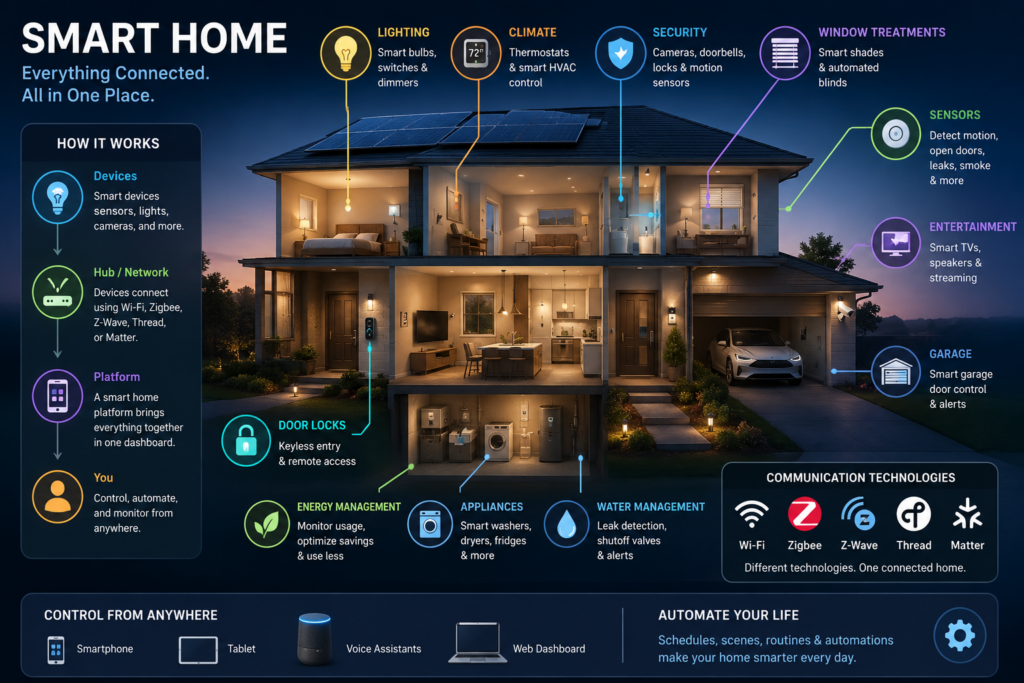
A smart home is simply a collection of connected devices that can monitor, control, or automate things around your house. These devices might include lights, locks, thermostats, cameras, motion sensors, smart outlets, doorbells, and window sensors.
Some smart home devices communicate directly over your home’s Wi-Fi network, just like your phone, computer, or tablet. Others use wireless technologies specifically designed for smart home equipment, including Zigbee, Z-Wave, and Thread.
The devices are usually managed through a platform such as Amazon Alexa, Google Home, Samsung SmartThings,
, or Home Assistant. These platforms allow you to control devices from a mobile app, create automations, or use voice commands.
How Does Zigbee Work?
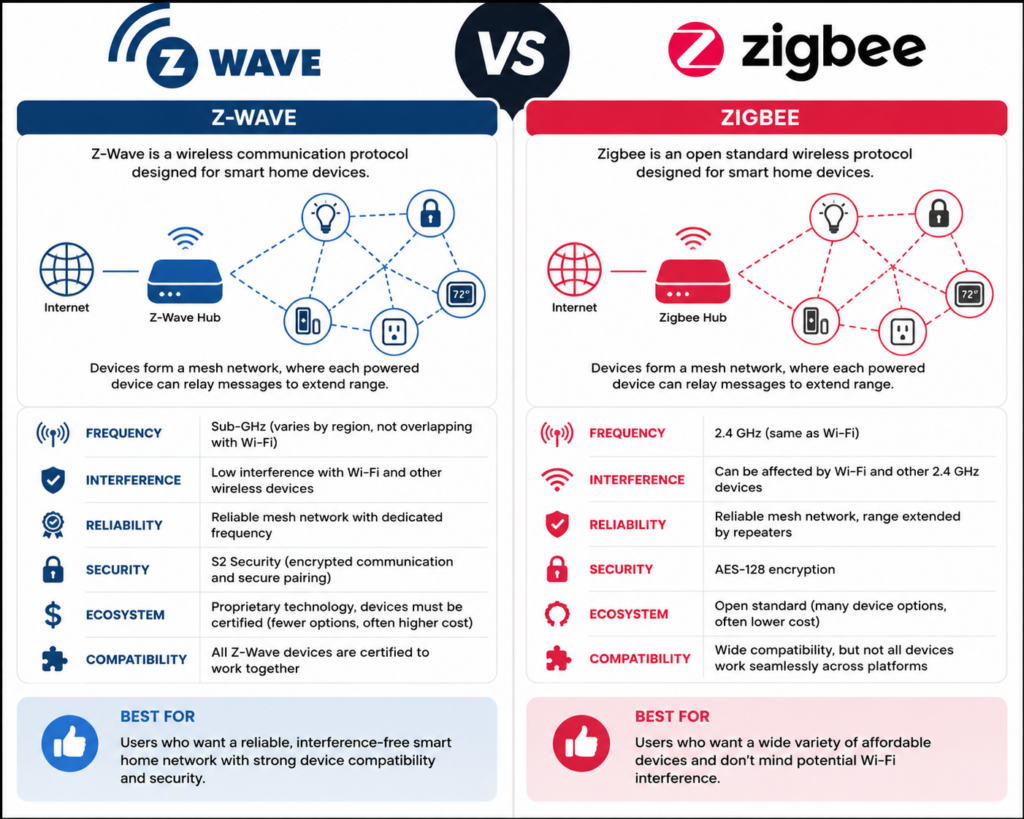
Zigbee is a low-power wireless communication protocol designed primarily for smart home devices. It has been around since 2004 and is commonly used by smart bulbs, outlets, motion sensors, switches, and other battery-powered devices.
Philips Hue smart bulbs are a popular example of Zigbee devices. The bulbs communicate with a hub, such as the Philips Hue Bridge, which then connects the Zigbee network to your regular home network.
You can think of the hub as a translator. Your Zigbee devices communicate using Zigbee, while your phone, computer, and home network communicate using standard networking technologies. The hub allows those two systems to work together.
One of Zigbee’s biggest advantages is its ability to create a mesh network. Many powered Zigbee devices, including smart outlets and bulbs, can repeat signals for other devices. Instead of every sensor communicating directly with the hub, the signal can hop between devices.
This can improve coverage and reliability, especially in larger homes. However, Zigbee operates in the same general frequency range as many Wi-Fi networks, which means interference can occasionally become an issue if the networks are not configured carefully.
How Is Z-Wave Different From Zigbee?
Z-Wave is another low-power wireless protocol designed for smart home devices. It operates similarly to Zigbee and can also create a mesh network, but it generally uses a different wireless frequency than Wi-Fi.
Because Z-Wave operates separately from most Wi-Fi traffic, there is usually less risk of interference. Z-Wave devices must also go through a certification process, which helps ensure that devices from different manufacturers work together properly.
The disadvantage is that Z-Wave is a proprietary technology. You may find fewer available products, and Z-Wave devices can sometimes cost more than comparable Zigbee devices.
Ring window sensors and motion sensors are common examples of devices that may use Z-Wave. To connect Z-Wave devices to a smart home system, you will need a compatible hub or USB coordinator.
What Is Thread?
Thread is another low-power mesh networking technology designed for smart home devices. It is similar to Zigbee and Z-Wave, but Thread uses Internet Protocol, commonly called IP, to help devices communicate across your home network.
The easiest way to understand Thread is to think of it as a mail carrier. The mail carrier knows where a package needs to go, but it does not necessarily know what is inside the package or what the message means.
Thread handles the delivery of information between devices. However, another technology is needed to define what those devices are saying to one another. That is where Matter comes in.
Why Does Matter… matter?
Matter is a smart home communication standard designed to help compatible devices work across different platforms. A Matter-compatible device may work with Amazon Alexa, Apple Home, Google Home, Samsung SmartThings, and Home Assistant without requiring a completely separate version for each platform.
Development of Matter began in 2019 under the name Project CHIP, which stood for Connected Home over IP. The project included companies such as Apple, Amazon, Google, and the Zigbee Alliance, which is now known as the Connectivity Standards Alliance.
The project was renamed Matter in 2021, and Matter 1.0 was officially released the following year. Since then, major smart home companies have continued adding Matter support to their products and platforms.
Matter does not replace Wi-Fi, Ethernet, or Thread. Instead, Matter is the common language devices use to communicate. The underlying network, such as Wi-Fi or Thread, is responsible for delivering the message.
What Is a Thread Border Router?
A Thread Border Router connects your Thread devices to the rest of your home network. It performs a role similar to a Zigbee hub, although the underlying technology works differently.
Some smart speakers, streaming devices, and smart home hubs include Thread Border Router functionality. Certain Amazon Echo models, Apple HomePods, Apple TVs, Google Nest devices, and other supported products may provide this capability.
One advantage of Thread is that a home can have multiple Border Routers working together. This can improve wireless coverage and make the network more resilient if one Border Router becomes unavailable.
How Do Alexa & SmartThings Control Devices?
Cloud-based smart home platforms such as Amazon Alexa and Samsung SmartThings can manage devices that communicate using several different technologies.
Some devices connect directly over Wi-Fi. Others use Zigbee, Z-Wave, Matter, or Thread. Whether you need a separate hub depends on the smart home platform and the capabilities built into the device controlling it.
For example, certain Amazon Echo and Echo Show models include built-in Zigbee support. Newer models may also act as Matter controllers or Thread Border Routers.
Samsung SmartThings commonly uses the Aeotec Smart Home Hub. This hub supports several technologies, including Zigbee, Z-Wave, Matter, Thread, Wi-Fi, and Bluetooth. Supporting multiple protocols allows SmartThings users to combine compatible devices from several manufacturers rather than depending entirely on one brand.
These platforms are considered cloud-based because features such as remote access, account management, voice recognition, software integrations, and device coordination may rely on the company’s servers. Your smart bulb does not necessarily need the internet simply to produce light, but the platform controlling it may depend on cloud services for certain features.
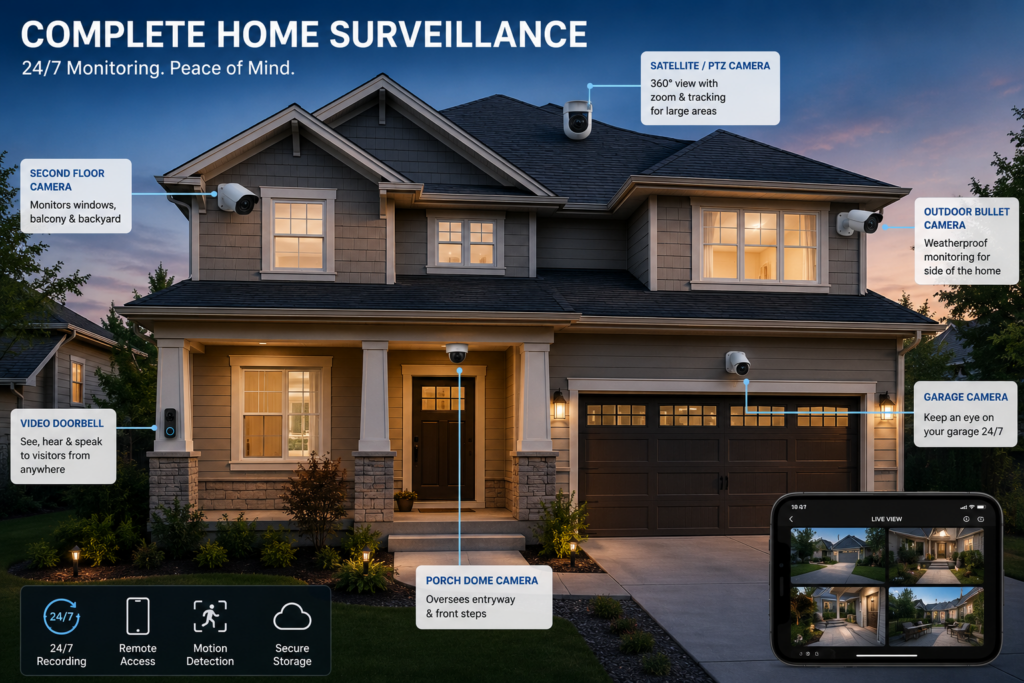
How Are Security Cameras Different?
Security cameras are more complicated than smart bulbs, locks, or motion sensors because cameras generate and store large amounts of video.
Cloud-based camera systems such as Ring and Google Nest allow you to view live video, receive motion alerts, and manage cameras remotely. However, saving recordings and reviewing historical footage generally requires a subscription.
After purchasing and installing the cameras, the provider manages the cloud storage, mobile app, software updates, and backend infrastructure. This makes cloud-based surveillance convenient for users who do not want to maintain their own recording equipment.
The exact subscription structure varies by provider. Some plans are based primarily on how many devices you own, while others are based on how much event or continuous video history you want to retain.
The primary benefit is convenience. You install the camera, connect it to your network, subscribe to the appropriate service, and allow the provider to manage the rest.
What Does Self-Hosting Mean?
Self-hosting means running services on equipment that you own instead of relying entirely on a third-party cloud platform.
For a surveillance system, this usually means storing camera footage on a local recorder, server, or network appliance inside your home. You determine how much footage is retained, who can access it, and how the system is configured.
The trade-off is that you are responsible for purchasing, configuring, maintaining, and occasionally troubleshooting the equipment. Self-hosting can require more time and a larger upfront investment, but it gives you more control over your system and your data.
Using UniFi Protect for Local Video Surveillance
I use UniFi Protect with five cameras, including a video doorbell. My recordings are stored locally on equipment in my basement, and I decide how long the footage is retained.
Once the system was configured, it required very little ongoing attention. UniFi Protect manages the available storage and automatically removes older recordings when space is needed.
The UniFi Protect mobile app allows me to view live feeds, review recordings, receive alerts, and create user accounts for family members. There is no monthly subscription required to access my locally stored recordings.
Another advantage is that features such as person, vehicle, and motion detection can be processed locally. Cloud services may still be used to make remote access more convenient, but the video analysis and primary storage remain on equipment that I own.
One of the more affordable ways to begin using UniFi Protect is with a Cloudkey Gen 2 Plus. It runs the UniFi Protect software and includes local storage for camera recordings.
Wired UniFi cameras generally connect through a Power over Ethernet switch or PoE injector. This allows a single Ethernet cable to carry both power and data. UniFi doorbells can use existing doorbell wiring for power and connect to your network over Wi-Fi, depending on the model.
The primary disadvantage is that UniFi Protect is designed mainly around UniFi cameras and hardware. It is an excellent option for people who want a polished, integrated platform, but it may not be ideal for someone who already owns cameras from several different manufacturers.
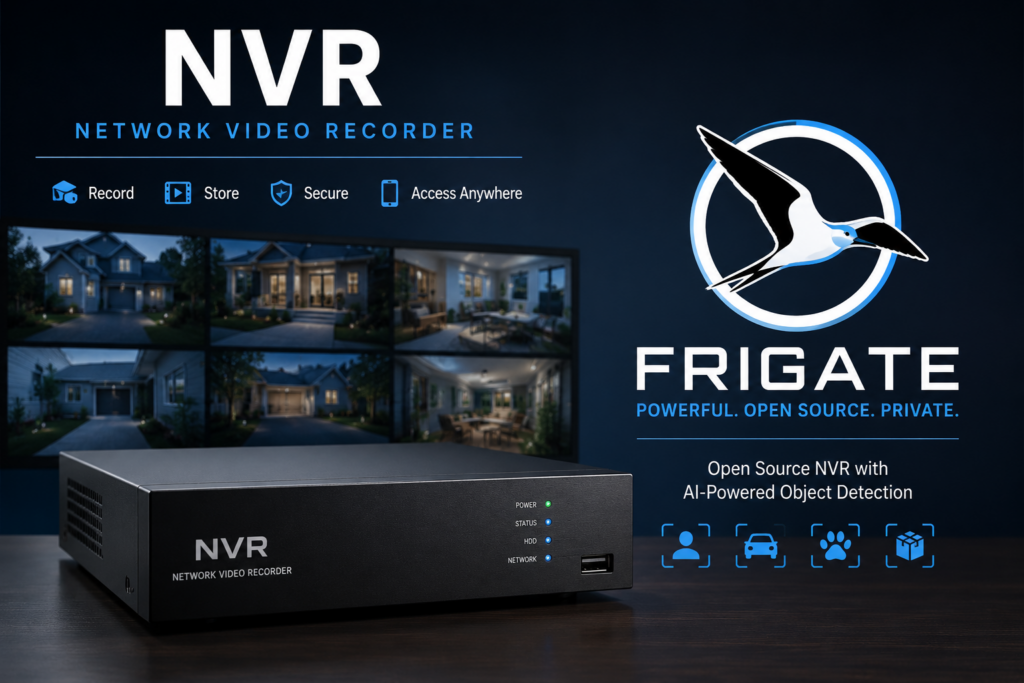
Using Frigate as an Open-Source NVR
Frigate is a free, open-source network video recorder that offers more flexibility than many closed camera ecosystems.
It can work with supported cameras from a variety of manufacturers, making it useful for people who want to build a surveillance system around equipment they already own.
Frigate generally requires more setup and technical knowledge than Ring, Nest, or UniFi Protect. It also may not provide the same polished mobile experience without additional configuration.
However, it gives you significant control over your cameras, recordings, object detection, and storage. For someone who enjoys self-hosting and wants to avoid being locked into one camera brand, Frigate can be an excellent option.
What Is Home Assistant?
Home Assistant is free, open-source smart home software that can run on many modern computers, mini PCs, virtual machines, and single-board computers such as the Raspberry Pi 4 or Raspberry Pi 5.
It brings devices from different brands and wireless technologies into a single interface. Your smart lights, thermostats, security sensors, cameras, outlets, door locks, and other devices can all be controlled from one platform.
Some smart home technologies require additional hardware. For example, connecting Zigbee or Z-Wave devices directly to Home Assistant typically requires a compatible USB coordinator.
Once the appropriate hardware and integrations are configured, Home Assistant can allow devices from different ecosystems to work together in ways that may not be possible through the manufacturer’s app alone.
For example, Philips Hue lights, Ring alarm sensors, UniFi Protect cameras, Nest thermostats, smart outlets, and door locks can potentially participate in the same automations.
Why Home Assistant Is So Powerful
Where Home Assistant really stands out is automation.
A basic smart home platform might allow you to turn a light on with your phone or voice. Home Assistant allows you to create automations based on time, motion, temperature, device status, weather conditions, sunrise, sunset, occupancy, and many other triggers.
Your porch lights could turn on 30 minutes before sunset. Your smart shades could close automatically when the outdoor temperature rises above 85 degrees. Your basement lights could flash red when a water leak is detected.
You could also adjust motion detection schedules, send notifications when doors are left open, turn devices off when nobody is home, or combine several conditions into a single automation.
The possibilities are nearly endless because you decide how the devices should work together.
How I Use Home Assistant Automations
In my studio, the lights are connected to Zigbee smart outlets. I use a Zigbee remote to control all of them at once.
A single press turns every studio light on, while a double press turns them off. Home Assistant receives the remote signal through a Zigbee USB coordinator and then runs the automation controlling each outlet.
I also use a Raspberry Pi Zero 2 W with a motion sensor to control a light in my office. When the Raspberry Pi detects motion, it sends that information to Home Assistant over Wi-Fi.
Home Assistant then turns on the office light through a Wi-Fi smart plug. After five minutes without motion, Home Assistant automatically turns the light off.
This is a good example of how Home Assistant can combine completely different technologies. The motion sensor is connected to a Raspberry Pi, the Pi communicates over Wi-Fi, and the light is connected through a Wi-Fi smart plug. Home Assistant ties everything together.
Does Home Assistant Require the Cloud?
Home Assistant can control many devices and automations locally without sending your data to an external cloud provider.
However, whether a particular device works entirely locally depends on how that device was designed. Some integrations communicate directly with devices on your network, while others rely on the manufacturer’s cloud service.
Choosing devices with strong local control support can help reduce your dependence on cloud services. It can also allow important automations to continue working during an internet outage.
Remote access can also be configured in several ways. Home Assistant offers its own subscription service for convenient remote access, but experienced users can also configure other secure remote-access methods.
Is Self-Hosting Right for You?
Cloud-based and self-hosted smart homes solve different problems.
If you want to install a few smart devices, control them through an app or voice assistant, and avoid managing the underlying technology, a cloud-based platform such as Alexa, Google Home, Ring, Nest, or SmartThings may be the better choice.
These companies handle most software updates, remote access, infrastructure, storage management, and account services for you.
Self-hosting may be more appealing if you enjoy learning new technology, want greater privacy, prefer to own your data, or want more control over how your devices work together.
The disadvantages are the larger upfront investment and the time required to learn, configure, maintain, and occasionally troubleshoot the system. In exchange, you gain much more flexibility and are less dependent on one company’s subscription plans or product ecosystem.
Cloud-Based & Self-Hosted Systems Can Work Together
Choosing self-hosting does not mean you have to completely abandon cloud-based services.
I still use Alexa occasionally for voice control, while Home Assistant handles many of my automations and locally managed devices. UniFi Protect stores my camera recordings locally, while remote-access services make it convenient to view those recordings away from home.
A smart home does not have to follow one specific philosophy. You can combine local and cloud-based services based on what works best for your household.
The goal is not to build the most complicated smart home possible. The goal is to build a system that is reliable, useful, and comfortable for you to maintain.
Final Thoughts
Zigbee, Z-Wave, Thread, Matter, Wi-Fi, hubs, cloud services, and self-hosted platforms can sound overwhelming when you first encounter them. However, each technology performs a relatively specific role.
Zigbee and Z-Wave connect low-power smart devices. Thread provides a modern IP-based mesh network. Matter gives compatible devices a shared language. Hubs and Border Routers connect these networks to the rest of your home. Platforms such as Alexa, SmartThings, and Home Assistant provide the interface and automation tools that bring everything together.
There is no universally correct way to build a smart home. Cloud-based platforms prioritize convenience, while self-hosted platforms prioritize control, flexibility, and local data ownership.
The best choice depends on how much time you want to spend managing the system and how much control you want over the technology running inside your home.
I didn’t decide to install smart shades because I was desperate to automate my windows.
I installed them because my dog wouldn’t stop barking at my neighbor!
Every time our neighbor walked through his own yard, my dogs would spot him through the kitchen window and immediately launch into full-scale neighborhood alert mode. Apparently the audacity of someone using their own backyard was simply too much to tolerate.
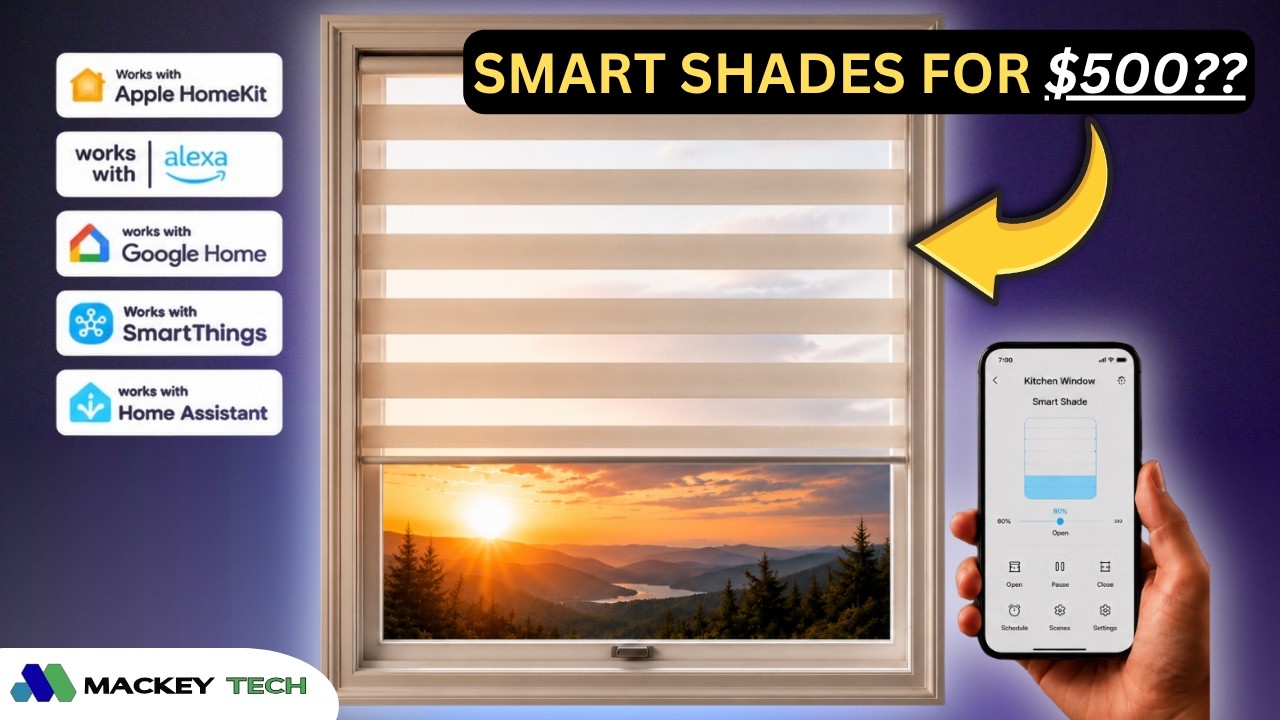
So when SmartWings offered to send me one of their smart shades for review, I figured this was the perfect opportunity to solve a real-world problem while also seeing how well the shades integrate with Home Assistant.
The question was simple: would smart shades help reduce the barking?
As it turns out, the answer is… complicated.
Who is Smart Wings?
Smart Wings is a Texas-based company that specializes in custom motorized window coverings. They offer a wide range of products including roller shades, Roman shades, blinds, and drapes, along with support for several smart home ecosystems.
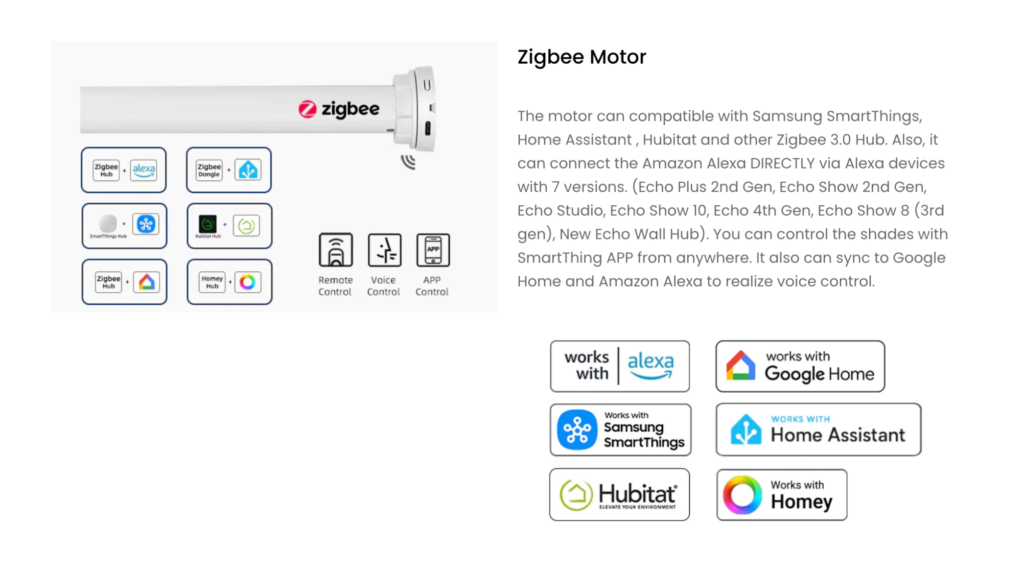
Depending on the motor you choose, Smart Wings shades can work with platforms such as Amazon Alexa, Google Home, Apple Home, SmartThings, and Home Assistant. For this review, I tested one of their Linen Roman Shades equipped with a Zigbee motor.
Since every shade is custom-made, there are a lot of configuration options available, which can be both a blessing and a curse.
Ordering the Shades
For this part of the review, I let my wife take the lead because she’s far more interested in fabrics, colors, and all the feng shui-related decisions that usually cause my eyes to glaze over.
According to her, the Smart Wings website was easy to navigate and made it simple to browse through the various styles, fabrics, and color options. One feature she especially appreciated was the ability to order fabric samples before making a final decision.
The ordering process does involve more decisions than simply entering your window dimensions. You’ll need to choose things like mounting style, fabric type, motor location, control options, and more. While that may seem overwhelming at first, those choices ultimately allow you to tailor the shade to your specific installation.
The one area she found confusing was selecting the motor.
Choosing the Right Motor
If there’s one technical decision you’ll need to make during the ordering process, it’s choosing the motor.
Smart Wings offers several motor options that support different smart home technologies. The standard motor is included at no additional cost and still works with a remote, but it doesn’t offer any smart home integration.
If you want smart home support, you’ll need to upgrade. The Zigbee motor I selected added $29 to the price, while the Matter-over-Thread option adds about $94.
Since I already run Home Assistant with an existing Zigbee network, choosing the Zigbee motor was an easy decision.
The important thing to remember is that the motor determines how the shade communicates with your smart home platform. If you’re heavily invested in Apple Home, for example, the Matter-over-Thread option may be a better fit.
Personally, I think Smart Wings could improve this part of the ordering experience by offering a simple wizard that asks which smart home platform you use and then recommends the best motor options.
Price and Shipping
The particular configuration I tested came in at roughly $522.
That price included the upgraded remote control and the optional solar charging panel, which added about $10 and $50 respectively.
Because these shades are custom-made and shipped from China, you’ll also need to account for some production and shipping time. In my case, I placed the order on April 27th and received the shades on May 15th, which was consistent with Smart Wings’ published delivery estimates.
What’s In the Box?
Inside the box, we have-
* The custom Roman shade
* Remote control
* Mounting hardware
* Installation manuals
* USB-C charging cable
* Optional solar charging panel (if ordered)
Overall, everything arrived well packaged and ready for installation.
Installation and Setup
Installation was mostly straightforward, although I did run into one small issue.
Neither the shades nor the manual clearly identified which side was the front and which side was the back. Once I figured that out, the rest of the installation went smoothly.
I shared that feedback with my contact at Smart Wings, and they were very receptive to the suggestion, so hopefully that’s something they’ll improve in future documentation. One thing I really appreciated was that the remote arrived pre-programmed. Pairing took only a few seconds because everything was already configured from the factory.
The only awkward part of setup involved accessing the pairing button on the motor itself. It’s hidden on the back of the motor and recessed enough that you’ll probably need a small tool to press it.
In my installation, the motor sits fairly close to the mounting surface, making the button difficult to access after installation. Looking back, I’d recommend pairing and configuring everything before mounting the shade.
Thankfully, this is something you’ll probably only need to do once.
Home Assistant Integration
One of my primary goals was to automate the shades through Home Assistant.
The plan was simple: Close the shades at dusk and Open the shades at dawn!
Unfortunately, things didn’t go exactly as planned.
The standard Open and Close commands weren’t behaving correctly within Home Assistant. I spent several hours troubleshooting the issue, reviewing Zigbee settings, testing automations, and checking device configurations.
At the time of filming, I wasn’t able to determine whether the problem was related to the motor firmware, Zigbee integration, or Home Assistant itself.
Fortunately, there was an easy workaround.
Using absolute position values worked perfectly. Setting the shade to 0% fully closed it, while 100% fully opened it. Every position in between worked exactly as expected.
As a result, I simply changed my automations to use position values instead of Open and Close commands, and everything worked flawlessly.
Problem solved.
Mostly.
Remote Control Performance
The upgraded 15-channel remote performed exactly as expected.
My shade arrived assigned to Channel 3, and if I decide to add more shades later, I can simply assign them to different channels while continuing to use the same remote.
The remote can also be used to adjust motor settings, upper and lower travel limits, and even motor speed.
At the default setting, it took roughly 15 seconds for the shade to fully open from the closed position.
Day-to-Day Use
After spending some time with the shade, I can honestly say I enjoy using it.
The fabric looks great, the motor is reasonably quiet, the remote is responsive, and the overall experience feels polished. Small details like the pre-programmed remote help make setup easier and contribute to a more premium feel.
That said, I did encounter a few documentation inconsistencies and translation quirks that occasionally made installation and troubleshooting more difficult than necessary.
And because I’ve only been using the shade for a short period of time, I can’t really comment on long-term reliability. Whether the motor performs just as well 30, 90, or 365 days from now is something only time will tell.
On the plus side, Smart Wings backs the motor with a 3-year warranty, which does provide some extra peace of mind.
Did It Solve My Dog Problem?
Remember the original goal?
Stopping the dogs from barking at the neighbor? Well… The dogs are still barking.
The only difference is that now they’re barking at the shades that were installed to stop them from barking at the neighbor.
So instead of solving one problem, I may have accidentally created a brand-new one.
I’m still not entirely convinced I’m not being punked.
Final Thoughts
Overall, I came away impressed with the Smart Wings experience.
The ordering process was straightforward, the customization options were extensive, installation was relatively easy, and the Home Assistant integration worked well once I switched to position-based controls.
They’re definitely not cheap, but if you’re looking for custom motorized shades that integrate into a smart home ecosystem, Smart Wings offers a compelling option with plenty of flexibility.
As for whether they’re worth over $500, that ultimately depends on how much value you place on convenience, automation, and custom-made window coverings.
So I recently stumbled across an old Intel Skull Canyon NUC that had been sitting in a closet for the last couple of years. It was still running Windows 10, and when I say “running,” I’m being pretty generous. Web browsing was sluggish, YouTube playback dropped frames constantly, boot times felt endless, and the overall experience made it clear this machine had seen better days.
To be fair, we’re talking about a system with only 8GB of RAM and a 6th-generation Intel Core i7 processor. On the other hand, it does have Intel’s Iris Pro 580 graphics, which were surprisingly capable for integrated graphics back when this machine was released. It also offers plenty of connectivity, including Thunderbolt 3, Gigabit Ethernet, Wi-Fi, Bluetooth, and support for up to three displays.
Rather than letting it continue collecting dust, I decided to see if Linux could breathe some new life into it.
Why I Chose Bazzite
Screenshot
When I asked my audience which Linux gaming distribution they preferred, the results weren’t even close. Bazzite received roughly 71% of the vote, while ChimeraOS and Batocera were tied at around 14% each.
That made the decision pretty easy.
Bazzite is based on Fedora Atomic and aims to provide an experience similar to SteamOS. It comes with Steam, Lutris, gaming drivers, controller support, and a variety of gaming-focused optimizations right out of the box. Through Lutris and other launchers, it can also access games from platforms like GOG, and even supports Android applications through Waydroid.
Before installing anything, I updated the NUC’s BIOS, replaced the dead CMOS battery, and cleaned out years of dust accumulation so the cooling fan would stop sounding like a small aircraft preparing for takeoff.
Installing Bazzite
My original goal was to transform this NUC into a living room gaming machine using Steam Gaming Mode. Unfortunately, Gaming Mode isn’t supported on this particular hardware, so I went with the KDE desktop version instead.
After flashing the installer to a USB drive with Balena Etcher, installation was quick and painless thanks to the NUC’s 500GB NVMe SSD.
Once the system was up and running, I installed EmuDeck. If you’re not familiar with it, EmuDeck automates much of the emulator setup process and makes transferring ROMs significantly easier. It removes a lot of the hassle normally associated with emulation.
Testing Emulation Performance
The first game I loaded up was God of War II for the PlayStation 2.
Honestly, I was impressed. Gameplay felt smooth, controls were responsive, audio stayed perfectly synchronized, and I didn’t experience any crashes or noticeable slowdowns. Using an Xbox 360 controller felt completely natural.
Next, I fired up Gran Turismo 4. Performance was just as solid, although my driving certainly wasn’t. Despite what the footage may suggest, no alcohol was involved during testing—I simply have terrible racing-game skills.
Moving on to GameCube emulation, I tested The Legend of Zelda: The Wind Waker with shaders enabled. Once again, performance was excellent. Controls felt responsive, audio was crisp, and I didn’t encounter any lag.
As a longtime Metroid fan, I couldn’t resist trying Metroid Prime 2: Echoes. The result was more of the same: smooth gameplay, responsive controls, and no stuttering whatsoever.
At this point, it was becoming clear that this old NUC still had plenty of life left in it when it came to sixth-generation console emulation.
How Did Steam Games Perform?
After spending time with emulators, it was time to move over to native PC gaming through Steam.
Fallout: New Vegas
Running at 1280×1024 with mostly high settings, Fallout: New Vegas consistently delivered between 65 and 75 FPS. For a ten-year-old mini PC, that’s pretty impressive and made for a very enjoyable experience.
Borderlands 2
Borderlands 2 performed similarly. Frame rates were slightly lower, but gameplay remained smooth and responsive with no major issues.
F.E.A.R.
One of the biggest surprises was the original F.E.A.R.
This game was notoriously demanding when it launched nearly two decades ago thanks to its advanced lighting and shadow effects. On the Skull Canyon NUC, however, it regularly exceeded 120 FPS and felt fantastic to play.
It also remains just as creepy as I remember.
Contra: Operation Galuga
I also spent some time playing Contra: Operation Galuga, a modern reimagining of the classic Contra series.
The game ran smoothly, controls were responsive, audio worked flawlessly, and I experienced no crashes or major performance problems. More importantly, it was simply a lot of fun.
Hades
The original Hades was another standout.
Running at 1920×1080, frame rates generally stayed between 90 and 110 FPS. Gameplay felt incredibly smooth, controller response was excellent, and I didn’t encounter any lag whatsoever.
The Games That Didn’t Work So Well
Half-Life 2
Half-Life 2 initially crashed at the welcome screen. Enabling Proton compatibility mode allowed me to play briefly, but the game eventually crashed again.
There are probably fixes available, but for this test I wanted to evaluate the out-of-the-box experience rather than spend hours troubleshooting individual games.
Doom Eternal
Doom Eternal proved to be too much for the hardware.
The game requires at least 4GB of dedicated video memory, which is significantly more than this NUC can provide. I repeatedly ran into memory-related errors before I could perform any meaningful testing.
Counter-Strike 2
Counter-Strike 2 came surprisingly close to being playable. I was able to navigate menus and nearly enter a match, but the game frequently hung and eventually crashed.
Even so, the fact that a modern AAA title got that far on a decade-old mini PC was impressive in its own way.
Final Thoughts
Going into this project, I wasn’t expecting much.
After all, this is a ten-year-old mini PC with only 8GB of RAM that had spent years collecting dust in a closet. Yet after installing Bazzite, it turned into a surprisingly capable little gaming machine.
No, it isn’t going to replace a modern gaming desktop. It’s not going to become a PlayStation 3 emulation powerhouse, either. But for GameCube, Wii, PlayStation 2 emulation, older Steam games, and even some newer titles, it delivered a much better experience than I expected.
Would Fedora, Nobara, ChimeraOS, or Batocera have produced similar results? Probably. But what impressed me most wasn’t necessarily Bazzite itself—it was discovering just how much life was still left in this old hardware.
Sometimes the best upgrade isn’t buying something new. It’s finding a new purpose for something you already own.
So now I’m curious: What’s the oldest computer you’ve managed to game on recently, and what Linux distribution are you using?
If you run any kind of homelab setup, there’s a good chance you’ve eventually run into this situation: a server suddenly refuses to boot, SSH stops responding, or a Linux update leaves the machine hanging at a black screen. And because the system is “headless,” meaning there’s no monitor or keyboard attached, troubleshooting suddenly becomes a whole lot more annoying.
Why Enterprise Servers Handle This Better
If you’re using enterprise-style server hardware, there’s a good chance your motherboard already includes something called IPMI, or Intelligent Platform Management Interface. Even though the name sounds complicated, the idea is actually pretty simple. It allows you to remotely interact with the physical machine itself, even if the operating system crashes or the computer won’t boot.
What Is an IP-KVM?
The challenge is that most consumer motherboards, mini PCs, and single-board computers don’t include those remote management features. That’s where IP-KVM devices come in. “IP-KVM” stands for keyboard, video, and mouse over IP, meaning these devices let you remotely view and control another computer over your network, even at the BIOS or boot level.
Enter JetKVM
JetKVM takes the IP-KVM idea and turns it into a much more polished plug-and-play appliance. In my case, I connected it to my ZimaBoard 2, which I use as my second Proxmox node. The setup was simple: HDMI from the ZimaBoard into the JetKVM, USB-C for keyboard and mouse control, and Ethernet for network access.
Using JetKVM in the Browser
Once JetKVM boots, it displays its IP address on the built-in screen. From there, you type that address into a browser on another computer and get a remote console view of the machine. In my case, I could access the Proxmox CLI almost like I was sitting directly in front of the ZimaBoard with a monitor and keyboard.
Why This Is Different from SSH or Remote Desktop
The big advantage is that JetKVM works underneath the operating system. SSH, Remote Desktop, VNC, and similar tools all depend on the operating system being functional. But with KVM-over-IP, you can still see and interact with the machine even if it’s frozen, stuck at GRUB, sitting in the BIOS, or refusing to boot.
JetKVM Cloud and Remote Access
By default, JetKVM is designed for local network access, but it also supports JetKVM Cloud for remote access outside your home network. You enable remote access in the settings, log in with a Google account, and the device appears in the cloud dashboard. JetKVM says the connection is encrypted end-to-end, and it uses WebRTC for the remote connection.
Virtual Media and ISO Mounting
Another useful feature is virtual media support. JetKVM can store ISO files directly on the device, and it also supports mounting installation media through a public URL. That means you can remotely boot installers or recovery environments without physically touching the machine.
Power Control Requires an Add-On
JetKVM can control the keyboard, mouse, and video side of things by itself, but it can’t physically power a device on or off unless you use the optional DC Power Control accessory. That add-on sits inline with supported barrel-jack powered devices and lets JetKVM cut and restore power remotely.
Performance and Responsiveness
Performance was better than I expected. It doesn’t feel exactly like sitting physically in front of the machine, but for BIOS navigation, Linux installs, troubleshooting, and general server management, it felt very usable. The video quality was fine, keyboard input was responsive, and the web interface stayed simple.
Who JetKVM Is Really For
JetKVM probably isn’t necessary if you only have one desktop sitting next to your monitor. But once you start running multiple systems, Proxmox nodes, TrueNAS boxes, Docker servers, or other always-on services, having low-level remote access becomes incredibly useful.
Final Thoughts
JetKVM helps bridge the gap between enterprise-style remote management and the consumer hardware many of us actually use in homelabs. It’s one of those tools you may not fully appreciate until a system refuses to boot and you realize you can recover it remotely without ever plugging in a monitor.
✅ Hardware Used :
*Certain links are affiliate links, and I may earn a commission on qualifying purchases—at no additional cost to you.
A lot of homelabers seem pretty split right now between going fully DIY with something like TrueNAS or Unraid, or just buying a more turnkey NAS from companies like Synology,QNAP, or UGREEN and obviously, both approaches have their pros and cons.
DIY platforms usually give you a lot more flexibility and control over how everything works, while turnkey NAS systems tend to focus more on simplicity and ease of use. But what makes the UGREEN NAS DXP4800 Pro interesting is that it kind of sits somewhere in the middle of those two worlds.
You still get the simpler UGOS setup and management side of things, but the hardware itself also feels surprisingly flexible since you’re not locked into proprietary RAM or storage upgrades. People have also been experimenting with things like Proxmox VE and TrueNAS on the hardware as well.
In fact, I recently ran a couple polls on the channel asking whether people preferred more turnkey NAS platforms or more DIY solutions, and most people leaned heavily toward the DIY side of things, which honestly didn’t surprise me.
So rather than turning this into another NAS review full of spreadsheets and synthetic benchmarks, the real question I wanted to answer was this:
Can the UGREEN DXP4800 Pro still scratch that DIY homelab itch while also keeping some of the simplicity of a turnkey NAS?
UGREEN sent me the DXP4800 Pro along with a few Seagate IronWolf drives to test out at no charge, but no money changed hands and, as always, all opinions are my own.
Hardware and First Impressions
Before getting too deep into TrueNAS testing, I first wanted to get UGOS set up and take a quick look at what the overall UGREEN ecosystem and user experience actually feels like.
Hardware-wise, the DXP4800 Pro is a 4-bay NAS supporting up to 144TB of storage with a surprisingly generous mix of connectivity options. You’ve got HDMI out capable of 4K at 60Hz, an SD card slot for quickly importing footage or photos, multiple high-speed USB ports including 10Gb USB-C, and dual networking ports including both 10GbE and 2.5GbE.
Internally, the system is powered by Intel’s Core i3-1315U processor and ships with 8GB of RAM. There are also two DDR5 memory slots supporting up to 96GB of RAM along with dual M.2 NVMe slots which can be used either for cache or additional storage pools.
So from a hardware perspective, this honestly feels much closer to a compact homelab server than just a basic file storage box.
Installing the drives was also pretty straightforward since the DXP4800 Pro uses a mostly tool-less design for mounting standard 3.5-inch drives into the sliding bays, while 2.5-inch drives use the included mounting screws already attached to the trays.
Once installed, the drive trays slide in with a satisfying click, and the bays can also be locked using the included keys if you want a little extra security.
And yes, the standard SATA hard drive bays are hot swappable on NASync series devices like the DXP4800 Pro, although according to UGREEN’s documentation, hot swapping SSDs and NVMe drives is not officially supported.
Setting Up UGOS
For my testing, I also installed a 256GB Kingspec NVMe SSD by removing the bottom cover and securing it with the included screws.
With all the drives installed, I plugged the NAS into my network, connected the included 120W power adapter, and powered the system on.
To initially register and connect to the NAS, you’ve got a few different options. You can use the official mobile app, navigate to find.ugnas.com in your browser, or install the desktop application, which is what I ended up doing.
The setup process itself was honestly very simple. The software walks you through creating your administrator account and registering the NAS, then from there you can begin creating storage pools and configuring the filesystem.
One thing I liked seeing was support for JBOD, or “Just a Bunch Of Disks,” which can be useful if you have mismatched drive sizes and simply want to maximize available storage capacity. That said, JBOD does not provide any redundancy or protection against drive failure like RAID configurations do.
For my testing, I chose RAID 5 using Btrfs instead of ext4 so I’d have better snapshot support.
Now one thing worth mentioning is that Btrfs RAID5 and RAID6 have had a somewhat controversial reputation over the years, which is one reason many homelab users still prefer ZFS for parity-based storage pools.
A lot of the concern historically centered around parity consistency during unexpected power loss while data is actively being written, which is also why using a UPS is generally a smart idea regardless of the filesystem you choose.
That said, I’ve personally been running Btrfs RAID5 on another UGREEN NAS for over a year now without issues — though as always, make sure you have proper backups and do your own research.
Apps, Features, and Security
After getting storage configured, I enabled SMB, WebDAV, FTP, Bonjour, and SSH, adjusted some permissions, created another user account, and configured a shared folder. Honestly, all of that was pretty easy.
And if you do get stuck, there’s a built-in help section with links to tutorials and documentation directly inside the interface.
Compared to something like Synology or QNAP, UGREEN’s app ecosystem is still relatively small, but it already includes a lot of the core functionality most people are probably looking for. Things like media streaming, snapshots, virtualization, cloud syncing, and Docker support are all already there.
The Photos app also ties into UGREEN’s built-in AI model system for things like facial recognition, duplicate image detection, OCR text recognition, and even cat and dog breed recognition.
Most of those AI features worked surprisingly well overall, although some parts still felt a little rough around the edges in my testing — particularly the pet breed recognition. I also noticed portions of UGREEN’s AI documentation felt somewhat incomplete, so I wasn’t really able to find a clear answer for a few of the issues I encountered.
If you want remote access, UGOS also includes a feature called UGREENlink so you don’t have to deal with manual port forwarding. That said, if you’re especially security-conscious, you could always disable remote access entirely and instead use something like Tailscale or your own VPN setup instead.
I also liked several of the smaller security-focused touches throughout UGOS. SSH access can be limited to the local network, the system recommends using timed SSH sessions rather than leaving SSH permanently enabled, and there’s support for things like automatic IP blocking, firewall rules, TLS encryption settings, session management, certificate management, and built-in two-factor authentication.
Overall, the platform seems to put a decent amount of focus on sensible security defaults and account protection right out of the box.
Docker, Virtualization, and Media Streaming
One area where I think a lot of people are probably going to spend time on a NAS like this is media streaming.
For that, you can either install Jellyfin directly through the app store or deploy it yourself using Docker.
Honestly, the Docker app reminded me a little bit of using Portainer. You basically search for an image, download it, and create the container. Very simple.
There’s also a “Projects” feature that allows you to deploy multiple related containers together using a single YAML file. So instead of manually configuring every container individually, you can launch an entire stack at once — like the Joplin setup I showed running on my DXP6800 Pro which included both the application itself and a PostgreSQL database container.
Power efficiency during testing was also pretty impressive. At idle, the DXP4800 Pro hovered around 31.5 watts.
Even after running an Ubuntu virtual machine, allocating 4GB of RAM, installing Chromium, and simultaneously streaming a 20-minute 4K video through Jellyfin over 10GbE, the system only climbed to around 43–44 watts.
Honestly, for a NAS with virtualization, Docker, 10Gb networking, and media streaming workloads, that’s pretty respectable.
Installing TrueNAS
Now let’s switch gears and install TrueNAS onto the 256GB NVMe drive I installed earlier so we can preserve the original UGOS installation.
I also swapped in a separate set of 2TB IronWolf drives for this portion of the testing so I wouldn’t disturb the existing UGOS storage pools.
I downloaded TrueNAS Community Edition version 25.10.3.1, flashed it to a USB drive using balenaEtcher, connected a monitor through HDMI, attached a keyboard and mouse dongle, and booted into the installer.
Inside the BIOS, I enabled booting from the NVMe drive and disabled the system watchdog feature. Otherwise, the NAS would automatically reboot itself if it didn’t detect UGREEN OS running.
After setting the TrueNAS USB installer as the primary boot device, I selected the 256GB NVMe SSD as the installation target and completed the installation.
The process itself was actually pretty quick.
Once installed, I configured networking, signed into the TrueNAS web interface, and immediately noticed one of the more classic ZFS behaviors: aggressive RAM caching.
At first glance, memory usage looked surprisingly high even though I hadn’t created any pools yet, but that’s completely normal behavior for ZFS and one reason many DIY users prefer it.
Power usage while mostly idle was still hovering around only 31.5–32 watts, which was honestly pretty impressive considering TrueNAS and its associated services were already running.
The DIY Side of Things
Once I created my ZFS mirror pool and enabled things like SSH and NFS, I started installing apps and virtual machines.
And this is where the difference between turnkey and DIY platforms really becomes obvious.
TrueNAS definitely has the more mature app ecosystem overall with a massive catalog of community-driven containerized applications. But compared to UGOS, there’s also a lot more manual configuration involved.
You’re usually dealing with datasets, permissions, storage mappings, application paths, and network configuration before things work exactly the way you want.
Long story short, TrueNAS expects you to think more like a system administrator.
That added complexity gives you significantly more flexibility and control, but it also means there are a lot more moving parts involved compared to something like UGOS.
For example, unlike UGOS — which includes a built-in browser-based VM console — I had to use a separate VNC application to remotely access my Ubuntu virtual machine installer inside TrueNAS.
Power usage also climbed slightly higher under TrueNAS during heavier workloads. While streaming a local 4K video through Jellyfin and simultaneously installing Ubuntu 26.04 inside a VM, the system hovered around 51 watts, which honestly still seems pretty reasonable considering we were now running ZFS, virtualization, and media streaming workloads all at the same time.
Final Thoughts
After spending time with both UGOS and TrueNAS on the DXP4800 Pro, I really think UGREEN has found an interesting middle ground here.
If you just want media streaming, backups, Docker, virtualization, simple remote access, and an easy-to-manage NAS, UGOS already feels surprisingly polished and approachable.
But at the same time, the hardware itself also feels open enough that if you eventually want to experiment with something more DIY-focused like TrueNAS, Proxmox, or another operating system entirely, you can absolutely do that too.
And honestly, I think that flexibility is a big reason these systems have become so popular in the homelab community recently.
Personally, if I were setting something up for family members or somebody newer to self-hosting, I’d probably lean more toward leaving UGOS installed because it’s simpler and more approachable.
But for people who enjoy deeper customization, virtualization, containers, advanced storage management, and tinkering with their systems, running something like TrueNAS on the hardware was actually a lot of fun.
In the end though, I don’t really think this is about “UGOS versus TrueNAS.”
It’s more about figuring out which approach fits you best.
And with the Core i3 processor, support for up to 96GB of RAM, dual NVMe slots, and 10Gb networking, the DXP4800 Pro hardware itself feels very capable regardless of which direction you decide to go.
And speaking of turkney NAS, i have a dedicated video on why I switched over to UGREEN after being a Synology customer for 15 years!
💻 Hardware Used:
✅ Some links may be affiliate links, which help support me and help keep ads off here!
Contains information related to marketing campaigns of the user. These are shared with Google AdWords / Google Ads when the Google Ads and Google Analytics accounts are linked together.
90 days
__utma
ID used to identify users and sessions
2 years after last activity
__utmt
Used to monitor number of Google Analytics server requests
10 minutes
__utmb
Used to distinguish new sessions and visits. This cookie is set when the GA.js javascript library is loaded and there is no existing __utmb cookie. The cookie is updated every time data is sent to the Google Analytics server.
30 minutes after last activity
__utmc
Used only with old Urchin versions of Google Analytics and not with GA.js. Was used to distinguish between new sessions and visits at the end of a session.
End of session (browser)
__utmz
Contains information about the traffic source or campaign that directed user to the website. The cookie is set when the GA.js javascript is loaded and updated when data is sent to the Google Anaytics server
6 months after last activity
__utmv
Contains custom information set by the web developer via the _setCustomVar method in Google Analytics. This cookie is updated every time new data is sent to the Google Analytics server.
2 years after last activity
__utmx
Used to determine whether a user is included in an A / B or Multivariate test.
18 months
_ga
ID used to identify users
2 years
_gali
Used by Google Analytics to determine which links on a page are being clicked
30 seconds
_ga_
ID used to identify users
2 years
_gid
ID used to identify users for 24 hours after last activity
24 hours
_gat
Used to monitor number of Google Analytics server requests when using Google Tag Manager
1 minute
Marketing cookies are used to follow visitors to websites. The intention is to show ads that are relevant and engaging to the individual user.
A video-sharing platform for users to upload, view, and share videos across various genres and topics.
Registers a unique ID on mobile devices to enable tracking based on geographical GPS location.
1 day
VISITOR_INFO1_LIVE
Tries to estimate the users' bandwidth on pages with integrated YouTube videos. Also used for marketing
179 days
PREF
This cookie stores your preferences and other information, in particular preferred language, how many search results you wish to be shown on your page, and whether or not you wish to have Google’s SafeSearch filter turned on.
10 years from set/ update
YSC
Registers a unique ID to keep statistics of what videos from YouTube the user has seen.
Session
DEVICE_INFO
Used to detect if the visitor has accepted the marketing category in the cookie banner. This cookie is necessary for GDPR-compliance of the website.
179 days
LOGIN_INFO
This cookie is used to play YouTube videos embedded on the website.