
I still remember back in the early 2000s when I was working at a biotech company and noticed a group of developers using this strange, almost intimidating operating system—black screens, green text, terminals everywhere. I asked one of them why they weren’t using Windows, and he laughed and said, “Because we actually need to get work done.” That funny comment really stuck with me!
Fast forward to today, and I want to answer the question a lot of people are still quietly asking: Can I switch to Linux without completely breaking my computer, my workflow, or my sanity? The answer is yes—definitely yes. And that’s exactly why I’m putting together this three-part series: to make the transition feel approachable, structured, and a lot less intimidating.
This first part is all about offering a roadmap—a way to think about switching to Linux before you actually do it. Whether you’re a Windows user who’s just curious, someone who’s tried Linux a few times but never fully committed, or even a more advanced user looking for a clearer framework, this guide is meant to meet you where you are.
Why Do You Want to Switch?
Before you install anything, before you download a single ISO, you need to ask yourself one simple question: Why do I want to switch to Linux?
That might sound obvious, but it’s actually the most important step. Maybe you’re still running Windows 10 on older hardware and don’t want to deal with Windows 11 requirements. Maybe you’re looking for something more secure, more efficient, or less bloated. Maybe you’re interested in open-source software, or maybe you’re just tired of the direction Windows has been going.
Whatever your reason is, it matters—because Linux isn’t a one-size-fits-all system. Unlike Windows, there isn’t just one version. There are dozens of distributions (or “distros”), each built with different goals in mind. Some prioritize stability, others focus on cutting-edge features, and some are designed specifically for older hardware.
Understanding your motivation helps you narrow down your options and avoid that overwhelming feeling when you first see the sheer number of choices available.
Hardware Still Matters
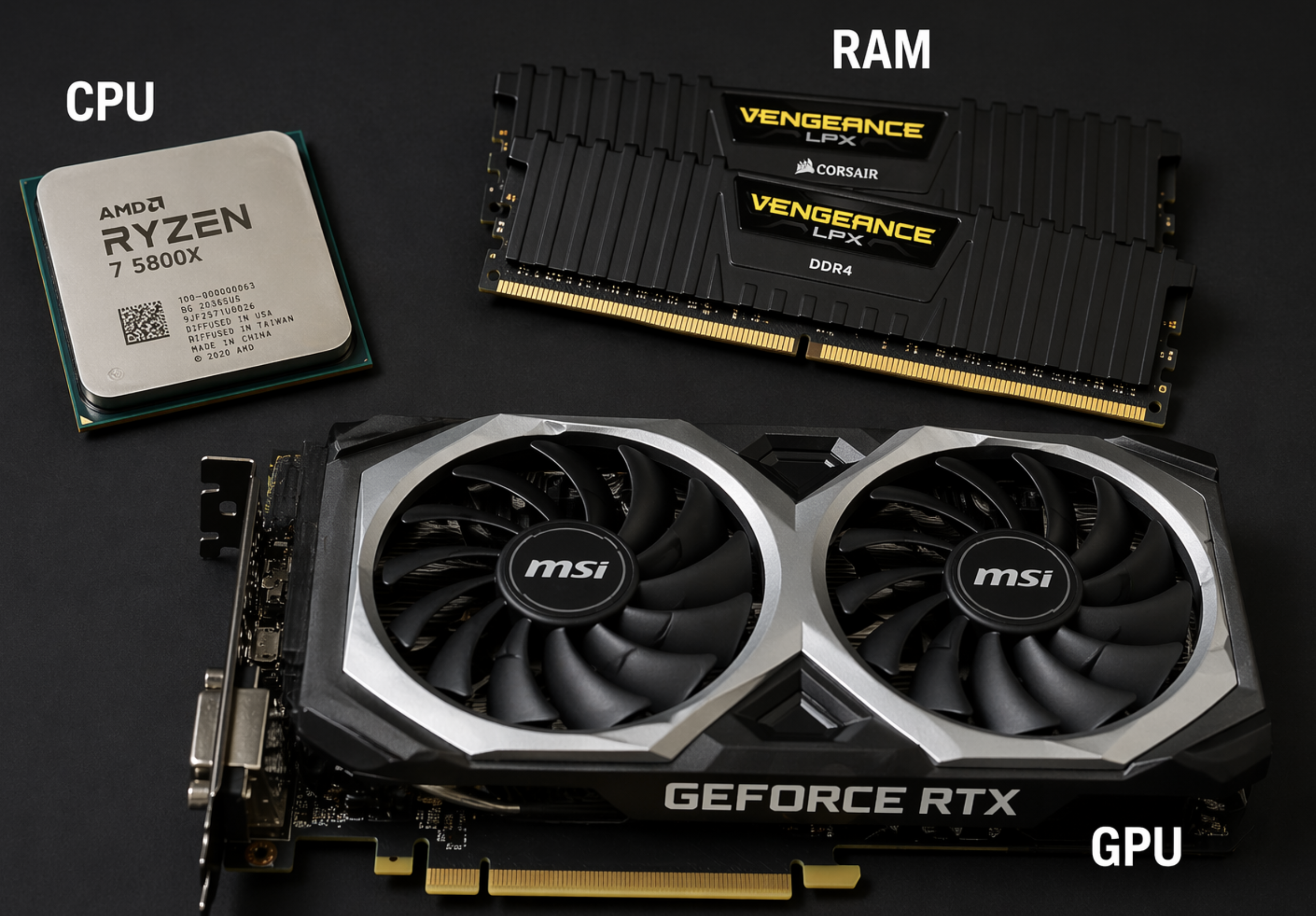
Linux has come a long way in terms of hardware compatibility, but your system still plays a big role in the experience you’ll have.
If you’re working with an older laptop or desktop, you’ll likely get the best results with a lightweight or more conservative distro—something that doesn’t demand a lot of system resources and doesn’t update aggressively. These tend to run smoothly on machines that are five to ten years old.
On the other hand, if you’re running newer hardware—modern CPUs, newer GPUs, updated Wi-Fi chipsets—you might want a distro that keeps up with the latest drivers and kernel updates. That’s where more frequently updated distributions come into play.
There’s always a tradeoff here. Some distros push updates quickly to support new hardware, which is great for compatibility but can occasionally introduce bugs. Others move more slowly and prioritize stability, which tends to be more comfortable for beginners.
Applications, Workflows, and What Actually Changes
One of the biggest concerns people have when switching to Linux is whether their apps will still work—and that’s completely valid.
If you rely heavily on something like Microsoft Office, you won’t find a native desktop version on Linux. But that doesn’t mean you’re stuck. Tools like LibreOffice and OnlyOffice handle most common file formats pretty well, and for many users, the web-based version of Microsoft 365 works perfectly in a browser.
For Windows-only applications, you still have options. Tools like Wine act as a compatibility layer, allowing many Windows programs to run on Linux. On top of that, utilities like Bottles simplify the process by giving you preconfigured environments tailored for specific apps or games, removing a lot of the manual setup.
Gaming has also improved dramatically thanks to Proton, which allows thousands of Windows games to run with minimal effort. If you’re unsure about compatibility, databases like WineHQ, Bottles, and ProtonDB can give you a good idea of what to expect.
Another major difference is how software is installed. Instead of downloading random ‘EXE’ files from websites, most Linux distributions use built-in software repositories. You install apps through a central software store, and your entire system updates in a unified way.
Flatpak adds another layer of convenience by providing access to a massive library of up-to-date applications that work across multiple distributions. Once it’s enabled, installing apps becomes as simple as searching and clicking install—no hunting around the internet required.
Choosing a Distro and Desktop Environment
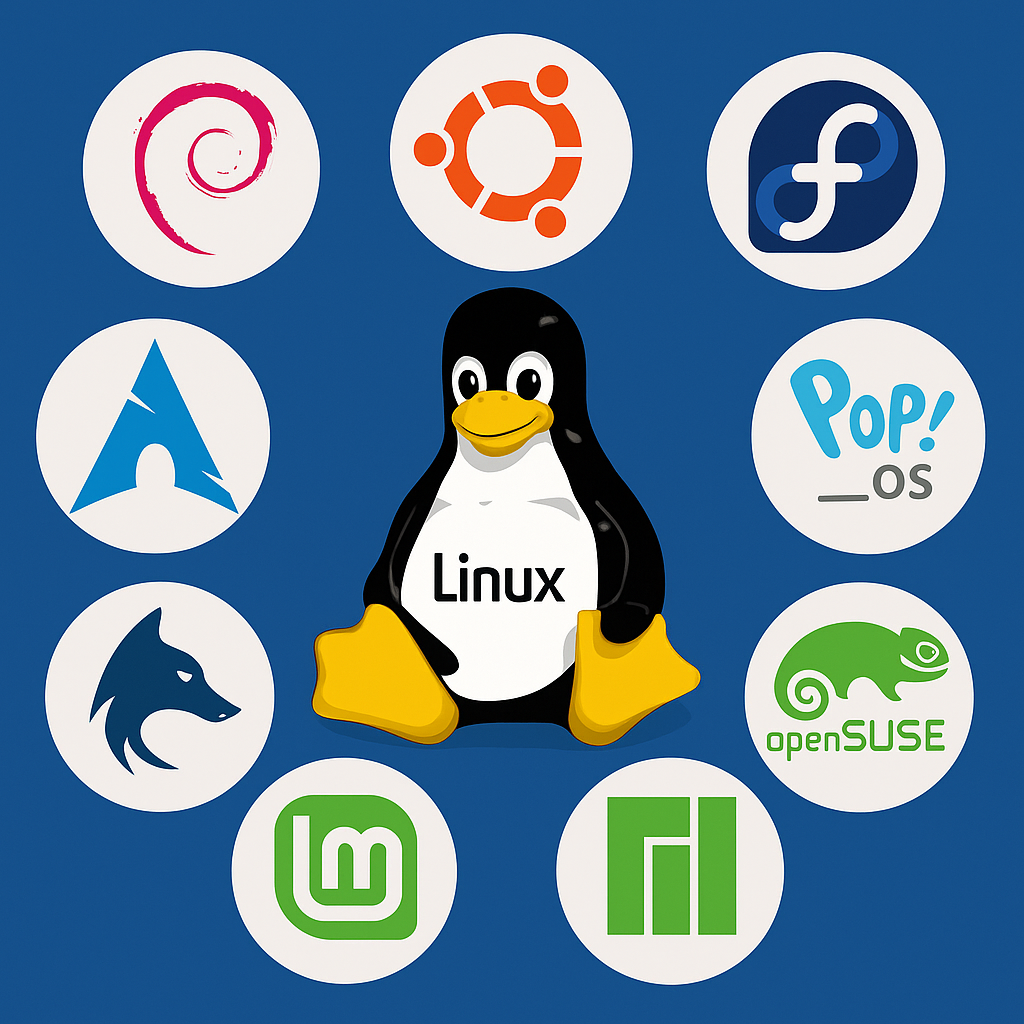
At some point, you’ll need to choose a distro—and for a lot of people, that’s where things start to feel overwhelming. But it doesn’t have to be.
Two things tend to scare beginners early on: the Linux filesystem and the terminal. In reality, neither of these should be a barrier. Day-to-day usage happens in your ‘Home’ folder, just like ‘Documents’ or ‘Downloads’ in Windows, and most modern tasks can be handled through a graphical interface. The terminal is there if you want it—but it’s not something you need to rely on constantly.
What you’ll actually notice most is the desktop environment—the look and feel of the system. Some options mimic the familiar Windows layout with a taskbar and menu, while others offer a more modern or streamlined approach.
Your level of experience can also guide your choice. If you’re newer to Linux, you’ll probably feel more comfortable with something that emphasizes ease of use and stability. If you’re more experienced or enjoy tinkering, you might prefer something that offers newer features and more customization.
But here’s the key: you don’t have to guess; you can actually try them!
Testing Linux Without Installing It
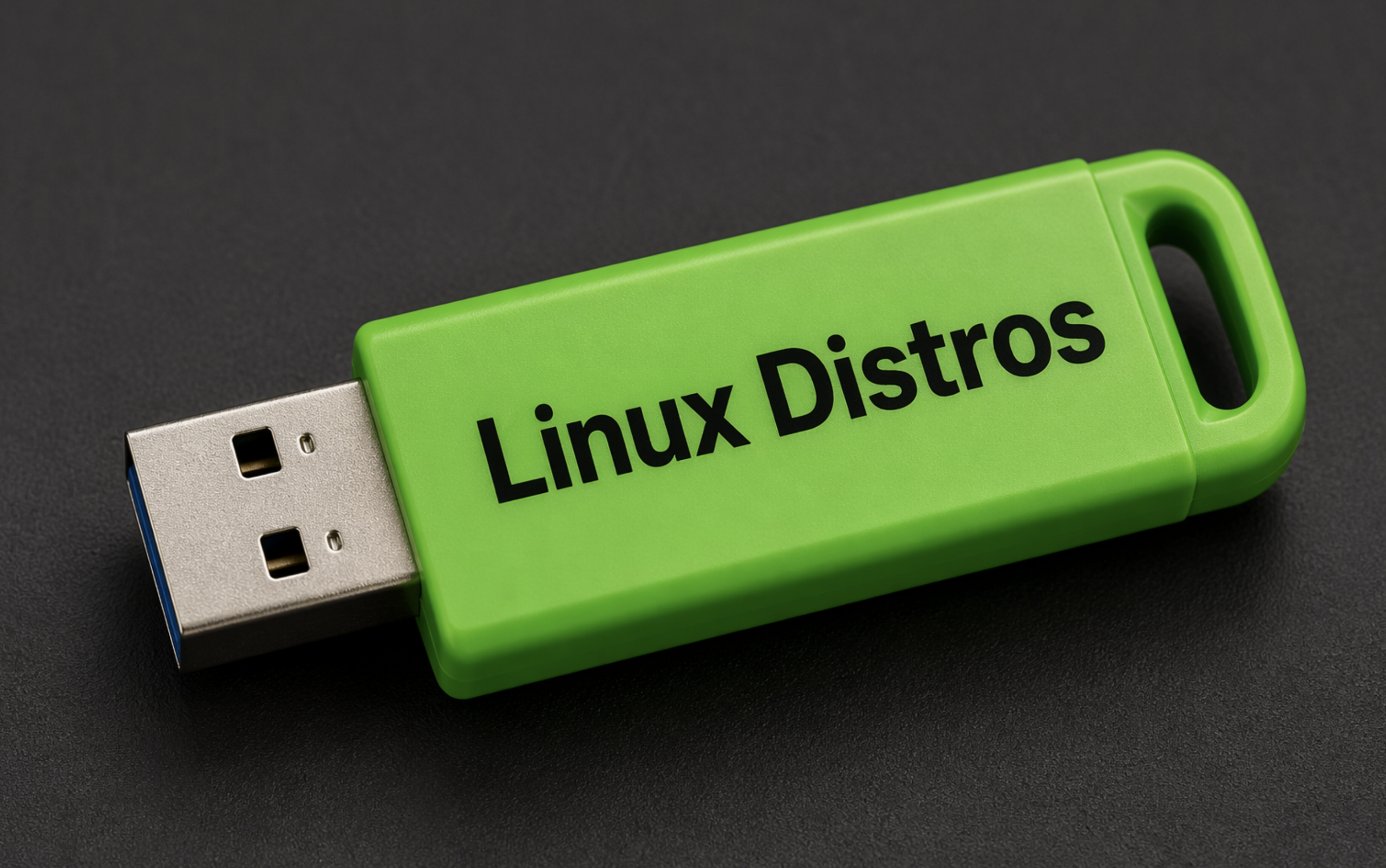
One of the best parts about Linux is how easy it is to test. Most distributions offer something called “Live Mode,” which lets you run the entire operating system from a USB drive without installing anything.
Think of it like test-driving a car. You can boot into Linux, check your Wi-Fi, test your audio, open your files, connect to your NAS, and see how everything behaves on your actual hardware—all without touching your Windows installation.
If you want to go further, you can even walk through your daily workflow. Open documents, launch a browser, test video calls, or try a few games. It may run a bit slower from a USB drive, but it gives you a very accurate picture of compatibility.
And the best part? You’re never locked in. You can try different distros, switch desktop environments, and experiment freely without committing to anything permanent.
Preparing for the Switch!
If you do decide to move forward, preparation is everything.
Start by backing up your data—documents, photos, bookmarks, game saves—anything you don’t want to lose. Make sure your external drives are accessible and not encrypted in a way Linux can’t read, and consider storing backups on a NAS or cloud service if you have one.
Once your data is safe, you can decide whether to fully switch to Linux or run a dual-boot setup alongside Windows. A dual-boot is a great option if you want to ease into the transition without giving anything up right away.
After installation, restoring your files is usually straightforward. Plug in your backup drive, log into your accounts, or reconnect to your storage, and everything should feel familiar again.
A Few Final Thoughts
There are a couple of things worth mentioning before wrapping up. One is the open-source nature of Linux. Some distributions are backed by companies, while others are entirely community-driven, but across the board, Linux is built in the open. That transparency gives you a level of control and freedom you don’t get with proprietary systems.
The other is security. Because of how Linux handles permissions and software distribution, it’s generally much harder for everyday malware to cause problems. You’re not downloading random installers from the web, and most software comes from trusted sources. It’s not invincible, but for most users, it’s a safer and lower-maintenance environment.
Wrapping Up (and What’s Next)
So those are my five key considerations for switching to Linux without overwhelming yourself. The goal here isn’t to push you into making the jump immediately—it’s to give you a clear, practical way to think about it so you can move forward with confidence.
In Part 2, we’re going to take the next step and walk through how to use Ventoy to test multiple Linux distributions in Live Mode—so you can try different setups on your own hardware without installing anything.
If you’ve been curious about Linux, this is the perfect place to start.
And as always—happy switching.