
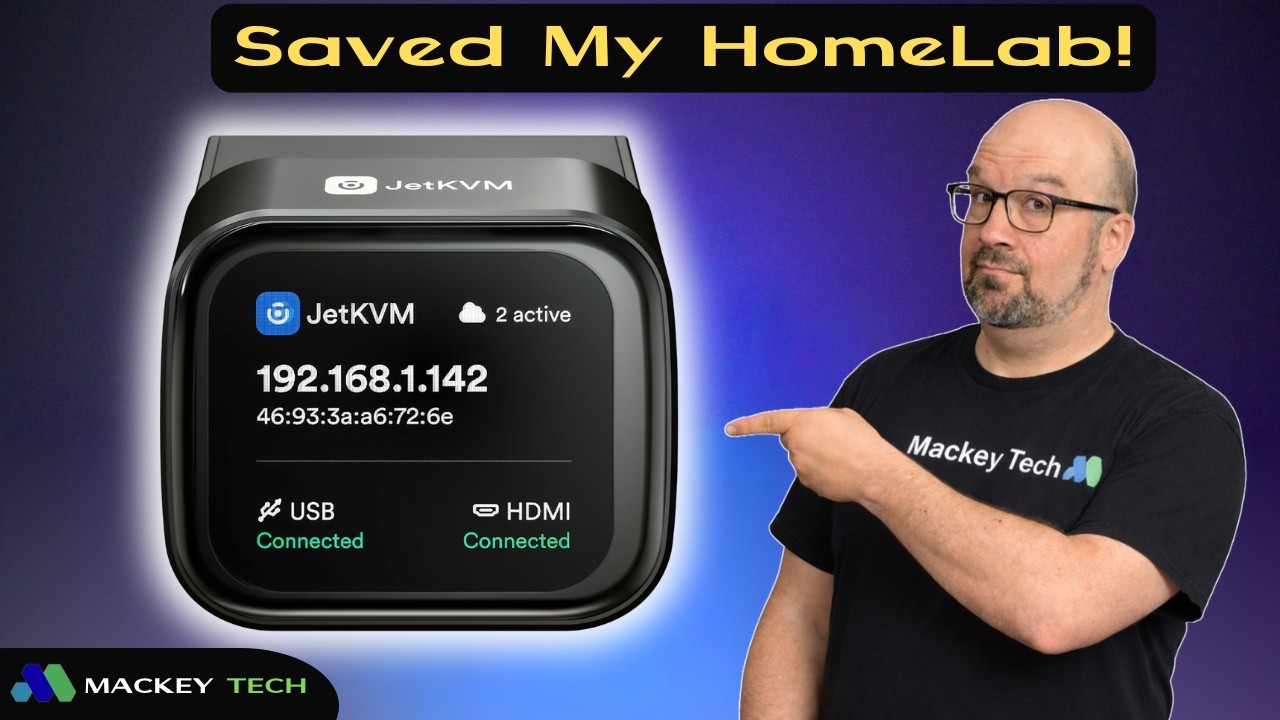
The Headless Server Problem
If you run any kind of homelab setup, there’s a good chance you’ve eventually run into this situation: a server suddenly refuses to boot, SSH stops responding, or a Linux update leaves the machine hanging at a black screen. And because the system is “headless,” meaning there’s no monitor or keyboard attached, troubleshooting suddenly becomes a whole lot more annoying.
Why Enterprise Servers Handle This Better
If you’re using enterprise-style server hardware, there’s a good chance your motherboard already includes something called IPMI, or Intelligent Platform Management Interface. Even though the name sounds complicated, the idea is actually pretty simple. It allows you to remotely interact with the physical machine itself, even if the operating system crashes or the computer won’t boot.
What Is an IP-KVM?
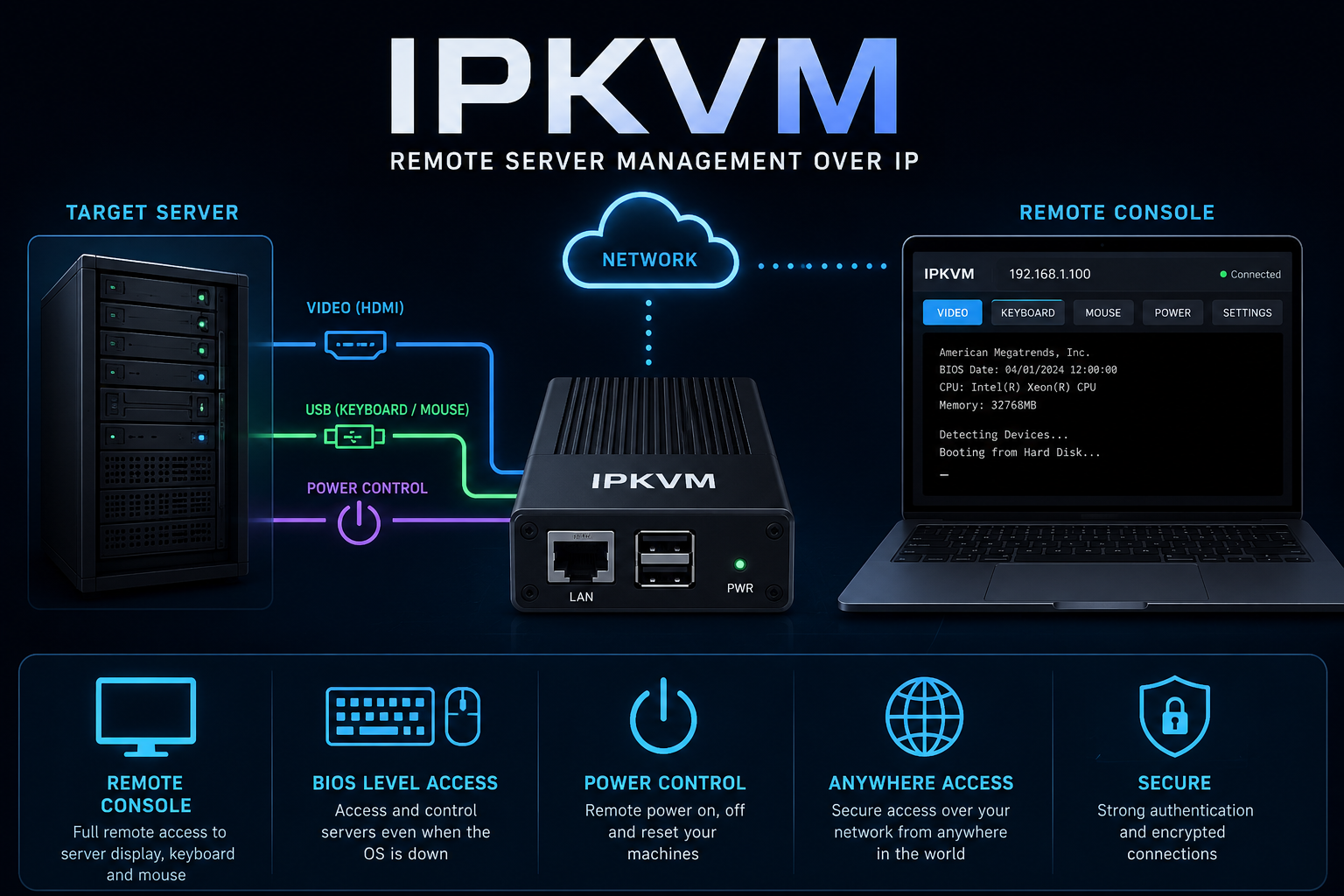
The challenge is that most consumer motherboards, mini PCs, and single-board computers don’t include those remote management features. That’s where IP-KVM devices come in. “IP-KVM” stands for keyboard, video, and mouse over IP, meaning these devices let you remotely view and control another computer over your network, even at the BIOS or boot level.
Enter JetKVM
JetKVM takes the IP-KVM idea and turns it into a much more polished plug-and-play appliance. In my case, I connected it to my ZimaBoard 2, which I use as my second Proxmox node. The setup was simple: HDMI from the ZimaBoard into the JetKVM, USB-C for keyboard and mouse control, and Ethernet for network access.
Using JetKVM in the Browser
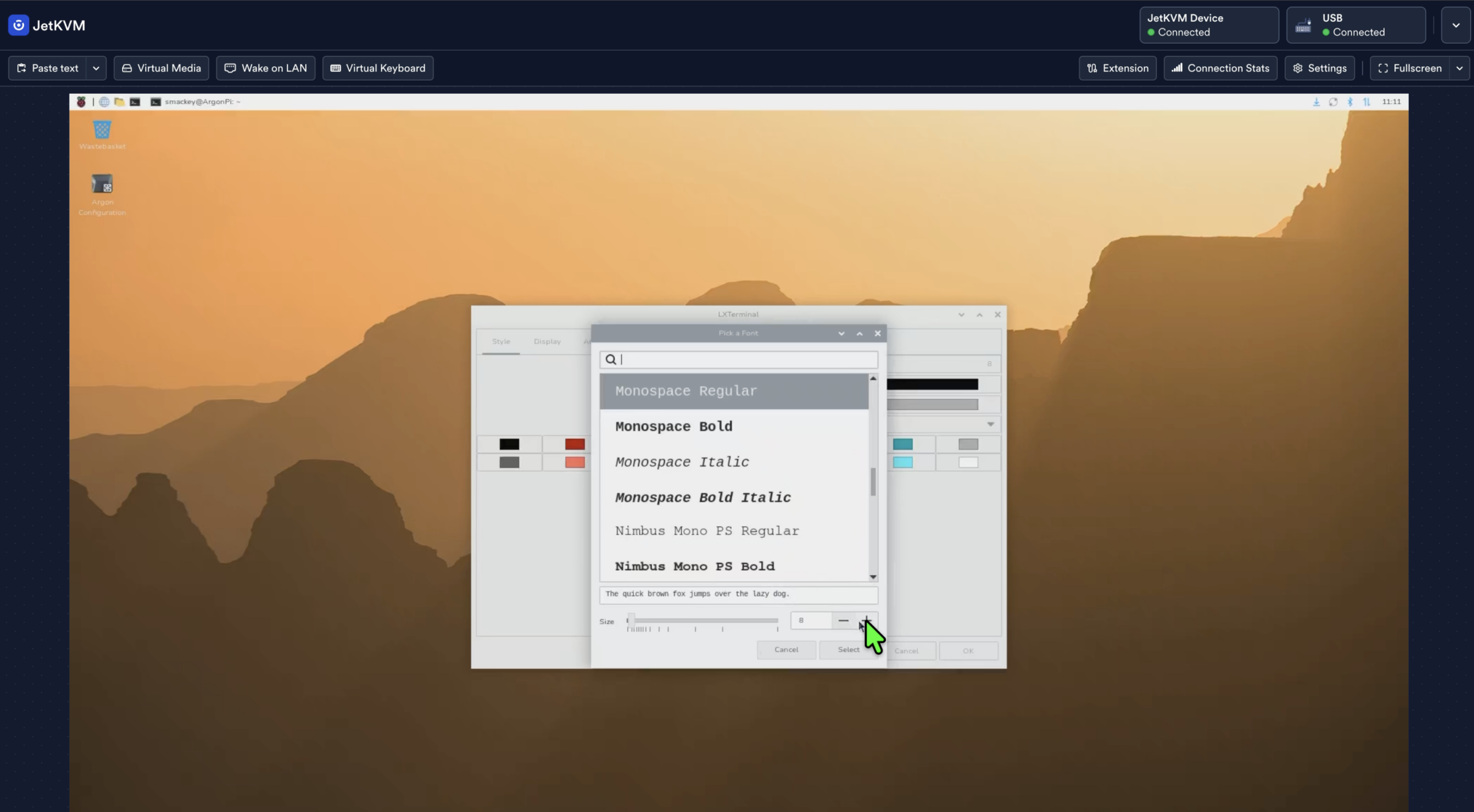
Once JetKVM boots, it displays its IP address on the built-in screen. From there, you type that address into a browser on another computer and get a remote console view of the machine. In my case, I could access the Proxmox CLI almost like I was sitting directly in front of the ZimaBoard with a monitor and keyboard.
Why This Is Different from SSH or Remote Desktop
The big advantage is that JetKVM works underneath the operating system. SSH, Remote Desktop, VNC, and similar tools all depend on the operating system being functional. But with KVM-over-IP, you can still see and interact with the machine even if it’s frozen, stuck at GRUB, sitting in the BIOS, or refusing to boot.
JetKVM Cloud and Remote Access
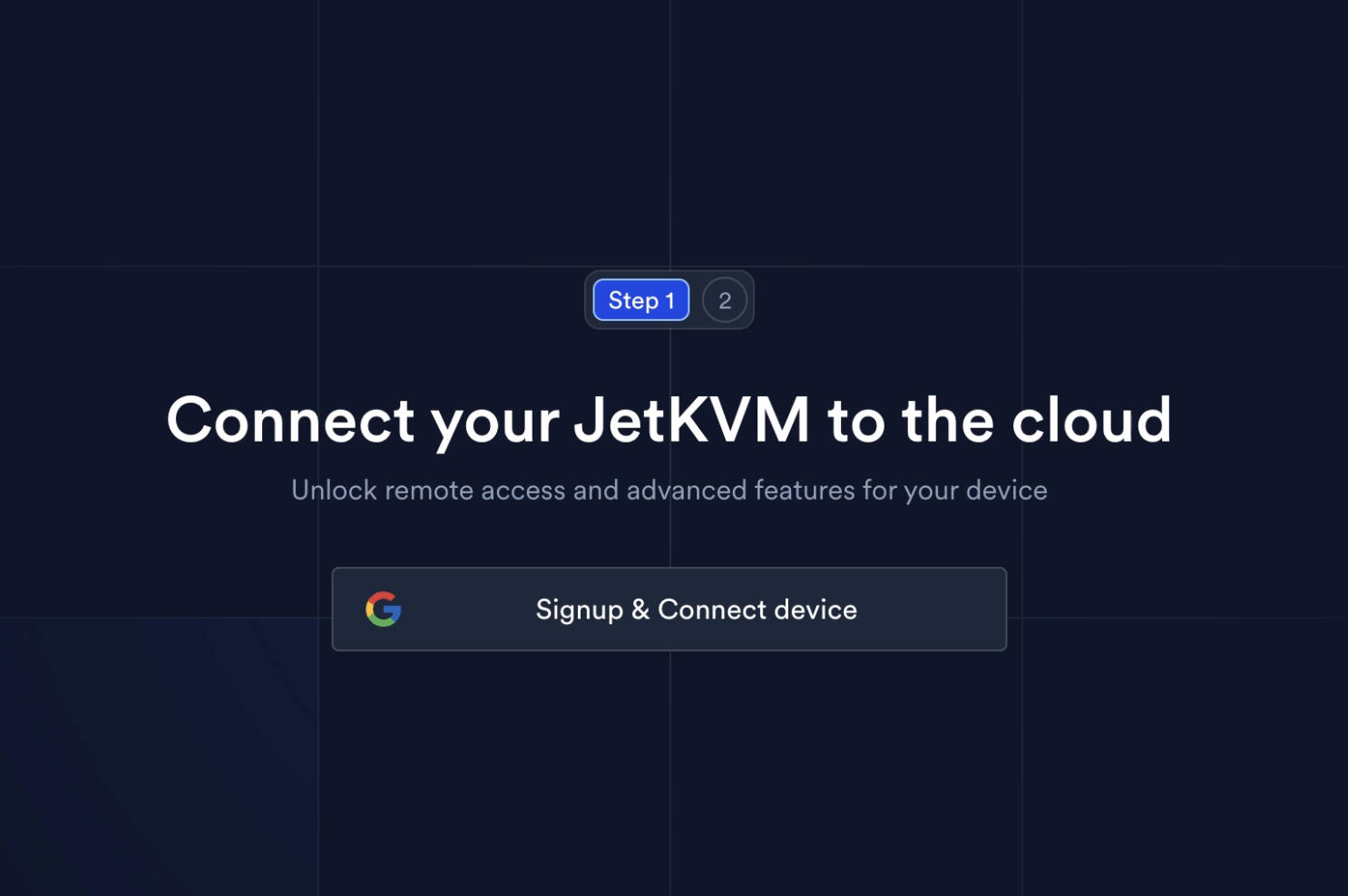
By default, JetKVM is designed for local network access, but it also supports JetKVM Cloud for remote access outside your home network. You enable remote access in the settings, log in with a Google account, and the device appears in the cloud dashboard. JetKVM says the connection is encrypted end-to-end, and it uses WebRTC for the remote connection.
Virtual Media and ISO Mounting
Another useful feature is virtual media support. JetKVM can store ISO files directly on the device, and it also supports mounting installation media through a public URL. That means you can remotely boot installers or recovery environments without physically touching the machine.
Power Control Requires an Add-On
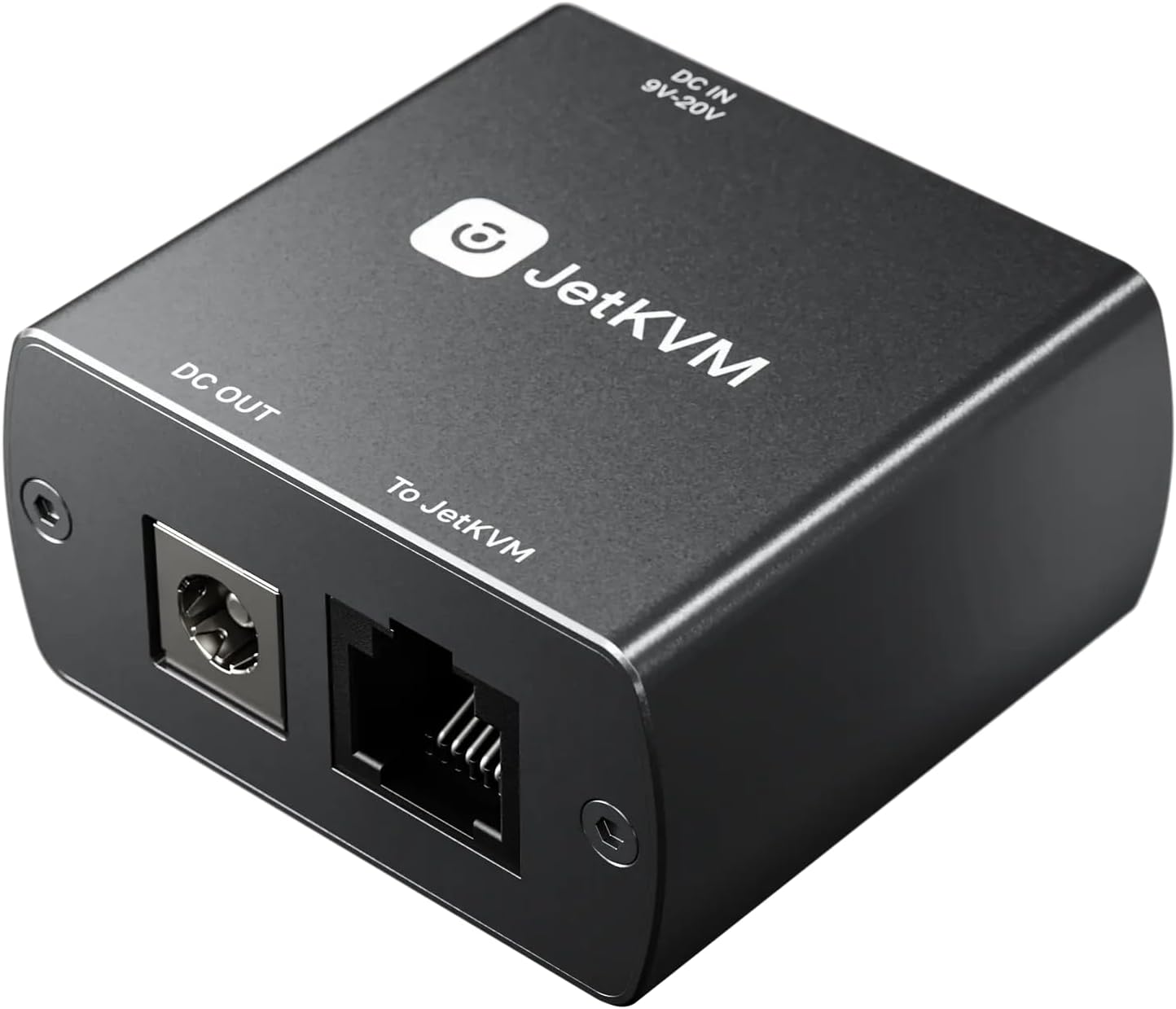
JetKVM can control the keyboard, mouse, and video side of things by itself, but it can’t physically power a device on or off unless you use the optional DC Power Control accessory. That add-on sits inline with supported barrel-jack powered devices and lets JetKVM cut and restore power remotely.
Performance and Responsiveness
Performance was better than I expected. It doesn’t feel exactly like sitting physically in front of the machine, but for BIOS navigation, Linux installs, troubleshooting, and general server management, it felt very usable. The video quality was fine, keyboard input was responsive, and the web interface stayed simple.
Who JetKVM Is Really For
JetKVM probably isn’t necessary if you only have one desktop sitting next to your monitor. But once you start running multiple systems, Proxmox nodes, TrueNAS boxes, Docker servers, or other always-on services, having low-level remote access becomes incredibly useful.
Final Thoughts
JetKVM helps bridge the gap between enterprise-style remote management and the consumer hardware many of us actually use in homelabs. It’s one of those tools you may not fully appreciate until a system refuses to boot and you realize you can recover it remotely without ever plugging in a monitor.
✅ Hardware Used :
*Certain links are affiliate links, and I may earn a commission on qualifying purchases—at no additional cost to you.
- 1) Zimaboard 2 with 16GB RAM Kit: https://amzn.to/4fQWnd9
- 2) Zimaboard 2 with 16GB RAM Stand alone: https://amzn.to/49wkDgU
- 3) JetKVM : https://amzn.to/3RH3hYC